
Overview
The Salesmotion Salesforce integration is an enterprise-grade solution delivered as a managed package installed directly into your Salesforce org. Combined with a dedicated integration user, this architecture gives your team full control over the data flow between Salesmotion and Salesforce — while keeping setup straightforward and maintenance minimal.
Plan requirement: The Salesforce managed package integration is part of the Enterprise plan. Contact your account manager to get started.
What makes it enterprise-grade
The Salesmotion Salesforce integration is designed for organisations that need reliability, security, and full control:
- Managed package — Installed via Salesforce's standard package installation process. Your Salesforce admin has full visibility into what the package does and can manage it like any other installed package.
- Dedicated integration user — A named Salesforce user handles all data sync between the two platforms. This gives your admin complete control over permissions, audit trails, and data access — no shared credentials or background processes operating outside your visibility.
- Full customer-side control — Your Salesforce admin controls which objects, fields, and records are shared. Nothing is synced without your explicit configuration.
- Easy to set up — Despite being enterprise-grade, the installation takes minutes. Most teams are fully configured and syncing data within a single session.
Installation
Step 1: Install the managed package
Your Salesmotion account manager will provide the package installation link. From there:
- Click the installation link — it opens the standard Salesforce package installer.
- Choose whether to install for all users or specific profiles (we recommend starting with admin-only, then expanding once you've verified the setup).
- Click Install. The package deploys the necessary custom objects, fields, and Lightning components.
Step 2: Create the integration user
The integration user is a dedicated Salesforce user account that handles all API calls between Salesmotion and your Salesforce org.
- Create a new user in Salesforce with a descriptive name (e.g. "Salesmotion Integration").
- Assign the user the Salesmotion Integration permission set (installed with the managed package).
- Ensure the user has read/write access to the Account, Contact, and any custom objects you want to sync.
- Provide the integration user credentials to your Salesmotion account manager securely.
The integration user appears in your Salesforce audit log, so your admin can always see exactly what data is being read or written.
Step 3: Configure sync direction
The Salesmotion integration supports both one-way and bi-directional sync:
| Direction | What it does | Best for |
|---|---|---|
| Salesmotion → Salesforce (one-way) | Pushes Salesmotion intelligence (signals, scores, summaries) into Salesforce custom fields. Does not read or modify your existing Salesforce data. | Teams that want to enrich Salesforce with account intelligence without any data flowing back. |
| Bi-directional | Salesmotion intelligence flows into Salesforce, and Salesforce data (account ownership, custom fields, opportunity data) flows back to Salesmotion. | Teams that want full alignment between both platforms — account assignments, pipeline data, and intelligence all in sync. |
Choose the direction that fits your workflow. Most teams start with Salesmotion → Salesforce (one-way) and expand to bi-directional once they're comfortable with the integration.
What gets synced
Salesmotion → Salesforce
Once configured, Salesmotion pushes the following into your Salesforce account records:
- Salesmotion Score — The account's current intelligence score (0–100), updated as new signals are detected.
- Signal summaries — Key recent signals displayed as custom fields or related list items on the Account record.
- Account briefs — AI-generated "What You Need to Know" summaries available directly within Salesforce.
- Data points — Signal counts by type and time period (30/90/180 days) visible on the Account record.
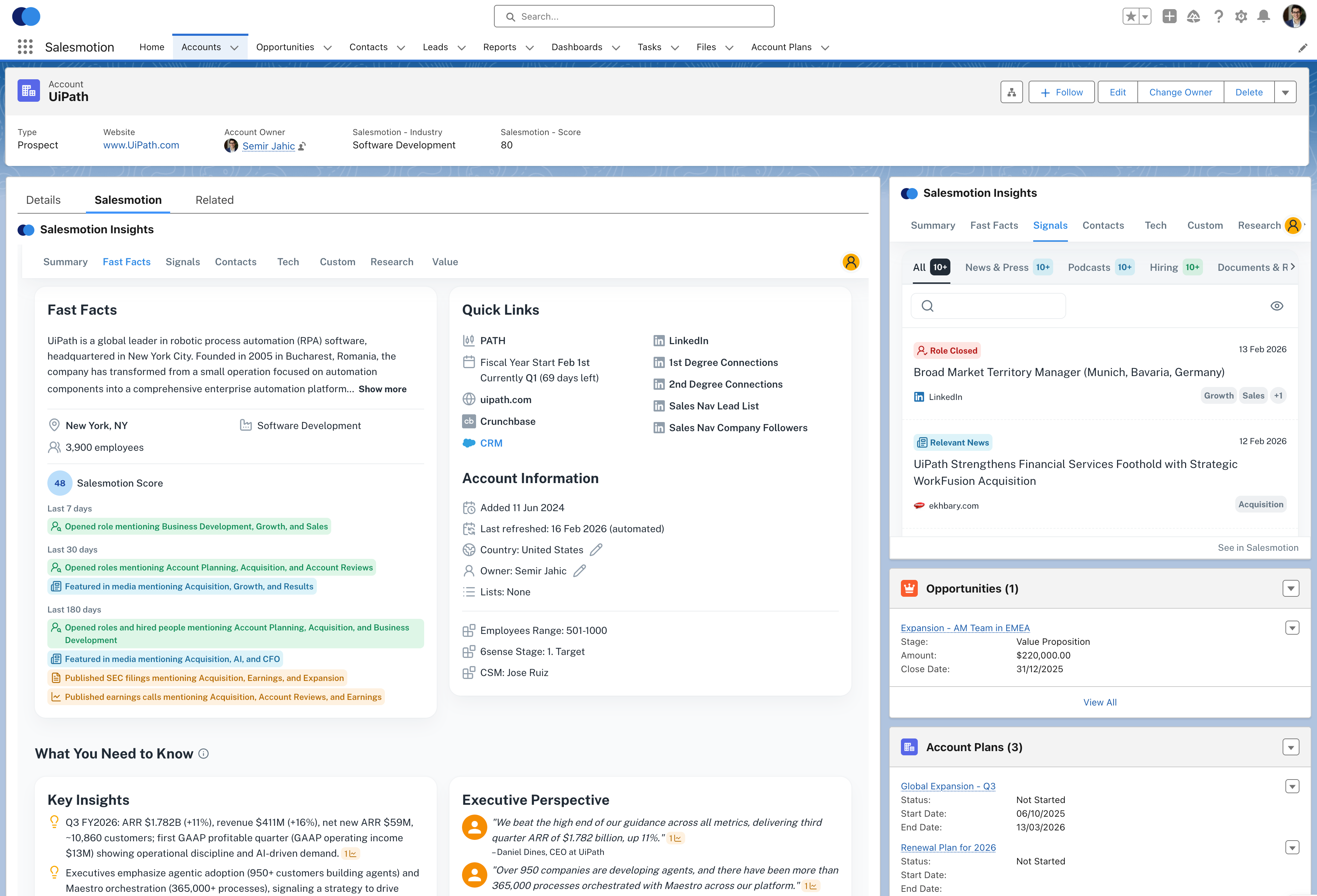 Salesmotion intelligence embedded directly in Salesforce — your reps see deep account research, signals, and AI-generated insights without leaving the CRM.
Salesforce → Salesmotion
When bi-directional sync is enabled:
- Account ownership — Salesforce account owners are synced to Salesmotion, so filtering by "My Accounts" works automatically.
- Custom fields — Map any Salesforce fields (industry, segment, ARR, renewal date) into Salesmotion for richer context.
- Opportunity data — Salesmotion can display pipeline information alongside account intelligence.
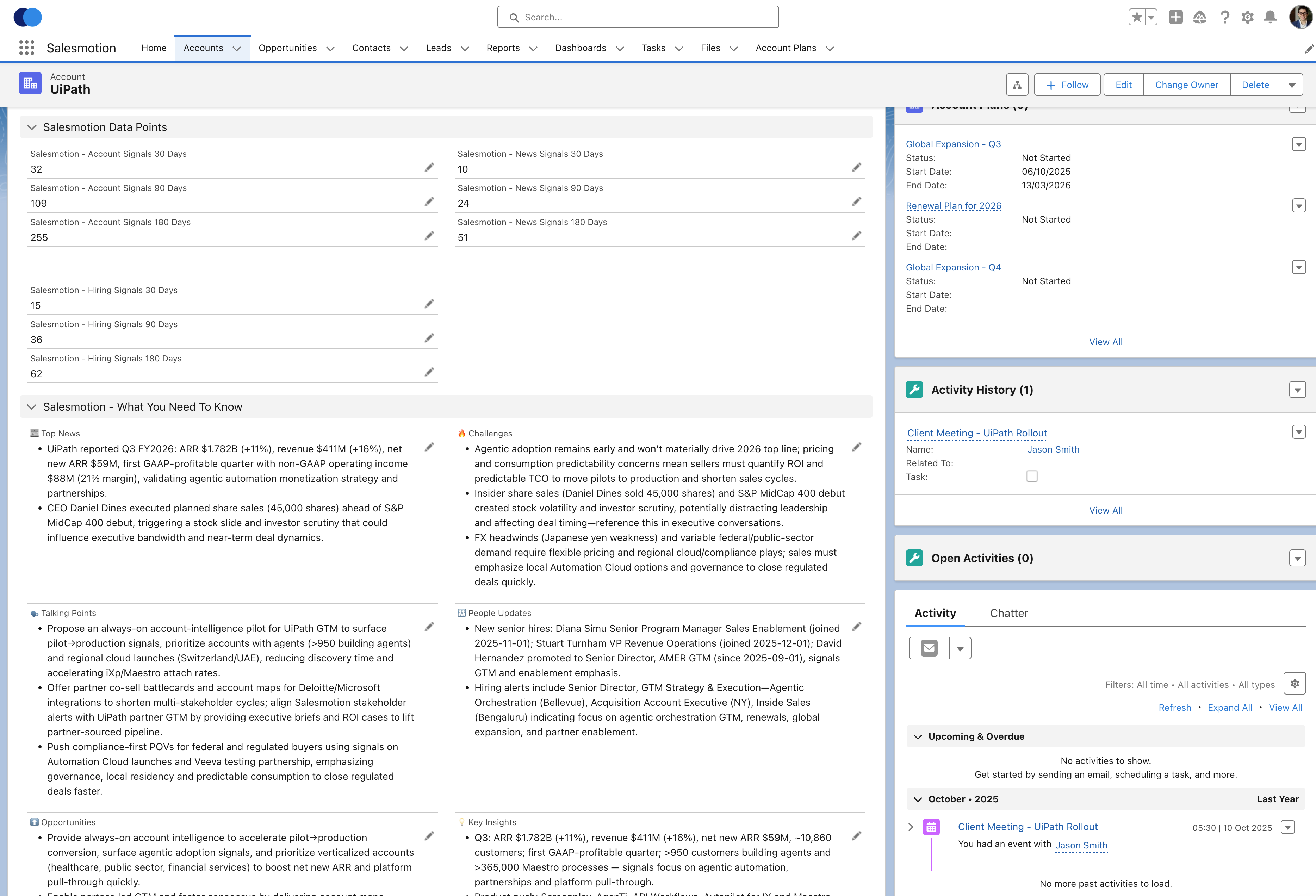 Salesmotion data points, AI-generated insights, and selling guidance embedded within the Salesforce Account record — everything your reps need at the point of work.
The embedded experience
With the managed package installed, Salesmotion surfaces directly within your Salesforce interface as a Lightning component. Your reps see:
- Salesmotion Insights panel — A sidebar or embedded section showing the account's latest intelligence, including summaries, signals, and opportunities.
- What You Need to Know — AI-generated briefings with Key Insights, Executive Perspective, Opportunities, Challenges, and Talking Points — all within the Salesforce Account record.
- Data points dashboard — Signal counts across time periods, so reps can see at a glance how active an account is.
- Quick navigation — Jump to the full Salesmotion account view for deeper research when needed.
This means reps never need to leave Salesforce to access Salesmotion intelligence. Deep account research is available at the point of work.
See it in action
Watch how the Salesmotion Salesforce integration works:
Security and compliance
The Salesforce integration is built with enterprise security requirements in mind:
- Your data stays in your control. The integration user model means your Salesforce admin has full visibility and control over data access.
- No background access. All API calls are made by the named integration user, visible in standard Salesforce audit logs.
- Standard Salesforce security. The managed package respects your org's sharing rules, field-level security, and profile permissions.
- SOC 2 compliant. Salesmotion's infrastructure meets SOC 2 requirements for data handling and security.
For organisations with formal IT review processes, we provide integration architecture documentation covering data flow, authentication, encryption, and compliance. Contact your account manager to request this for your security review.
Getting started
Setting up the Salesforce integration is typically part of the Enterprise plan onboarding:
- Contact your account manager to initiate the integration setup.
- Receive the package installation link and install it in your Salesforce org.
- Create the integration user and share credentials securely.
- Configure field mappings and sync direction with your Salesmotion team.
- Verify the setup — check that Salesmotion intelligence appears on your Salesforce Account records.
The entire process typically takes less than an hour. Your Salesmotion Customer Success Manager will guide you through each step.
Frequently asked questions
How long does the installation take?
The managed package installs in minutes. End-to-end setup — including creating the integration user, configuring field mappings, and verifying sync — typically takes less than an hour.
Can I control exactly what data is synced?
Yes. Your Salesforce admin controls which fields are mapped and which direction data flows. Nothing is synced without explicit configuration.
Does the integration affect Salesforce performance?
No. The integration uses standard Salesforce APIs and respects governor limits. The managed package is lightweight and does not impact your org's performance.
Can I switch between one-way and bi-directional sync?
Yes. You can start with one-way sync and expand to bi-directional at any time. Contact your Salesmotion account manager to adjust the configuration.
What happens if I uninstall the managed package?
Uninstalling the package removes the Salesmotion components from Salesforce. Any data that was synced into standard or custom fields remains in Salesforce — no data is deleted. You can reinstall and reconnect at any time.
Is the integration available on all Salesforce editions?
The integration works with Salesforce Enterprise Edition and above. It requires API access, which is included with Enterprise, Unlimited, and Performance editions of Salesforce.