
Overview of integrations
Salesmotion integrates with the tools your sales team already uses, bringing account intelligence directly into your existing workflows. The integrations page in Settings shows all available connections and their current status.
Plan requirement: CRM connectors (Salesforce, HubSpot) and custom integrations are included with the Enterprise plan. On other plans, contact us and we can enable the HubSpot integration for your workspace. See Connecting HubSpot.
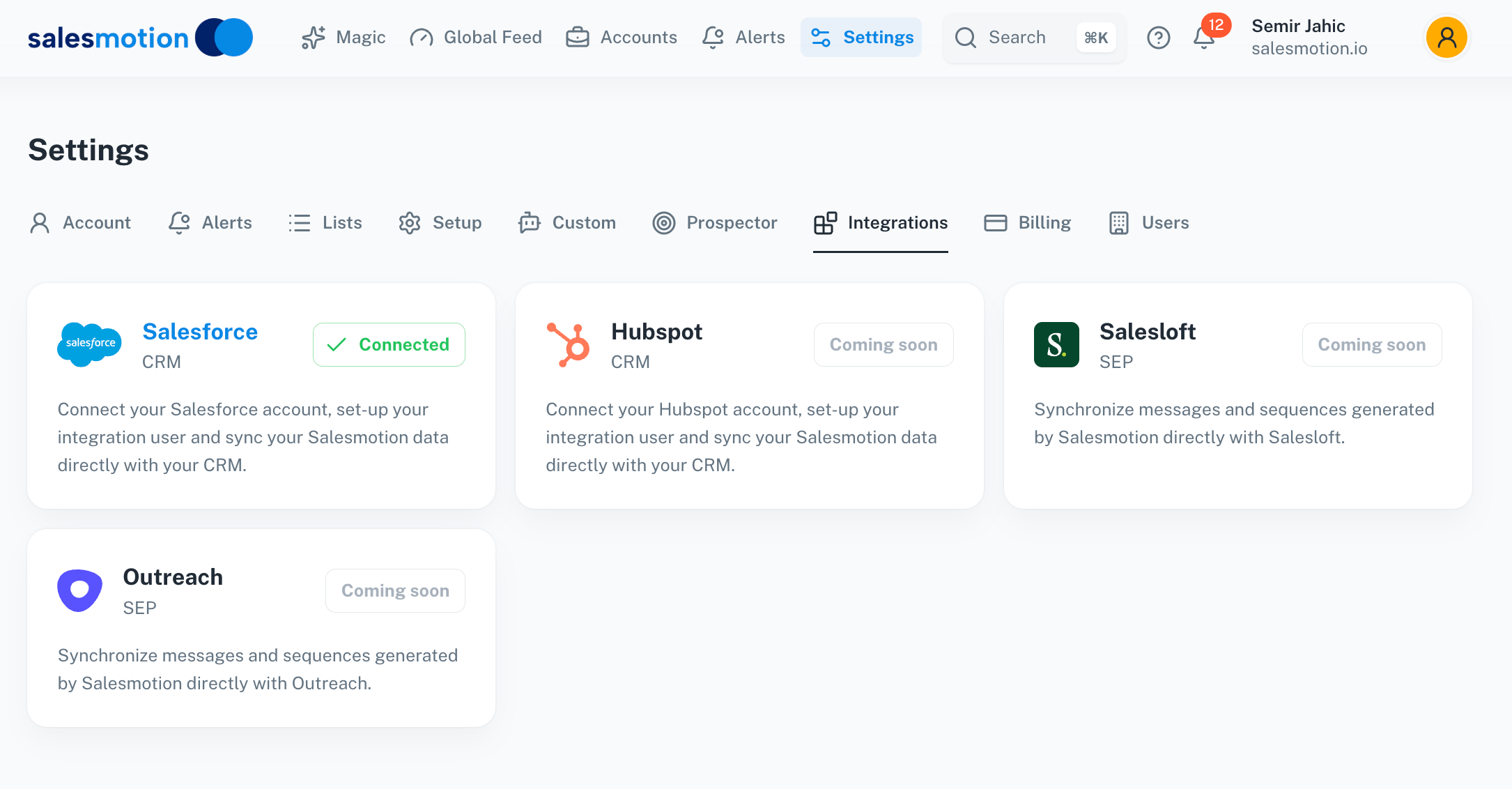 The Integrations page in Settings. HubSpot is installed from the HubSpot side, see Connecting HubSpot.
Currently, Salesmotion supports the following integrations:
| Integration | Type | Status |
|---|---|---|
| Salesforce CRM | CRM | Available |
| HubSpot CRM | CRM | Available: Connecting HubSpot |
| Salesloft | Sales Engagement | Available |
| Outreach | Sales Engagement | Available |
Connecting Salesforce
Salesforce is Salesmotion's primary CRM integration. Connecting it allows you to sync account data, surface Salesmotion signals directly within Salesforce, and keep both systems aligned without manual data entry.
How to connect
- Navigate to Settings using the navigation menu.
- Select the Integrations tab.
- Click on the Salesforce CRM card.
- Follow the on-screen prompts to authenticate with your Salesforce organisation. You'll be asked to log in to Salesforce and grant Salesmotion the necessary permissions.
- Once connected, the card will display a green Connected badge.
What the Salesforce integration does
Once connected, the Salesforce integration enables:
- Account sync — Salesmotion syncs account data with your Salesforce records, so information stays consistent across both platforms. Account details like owner, industry, and company size are kept in alignment.
- Signal data in Salesforce — Key signals detected by Salesmotion appear as custom fields on your Salesforce Account records, giving your team access to real-time intelligence without leaving the CRM.
- Quick Links to CRM — Each account's Fast Facts page in Salesmotion includes a direct link to the corresponding Salesforce record, making it easy to jump between systems.
- Integration user setup — As part of the connection process, you'll configure a dedicated integration user that handles the data sync between Salesmotion and Salesforce. This user should have read/write access to the relevant Salesforce objects.
Custom field mapping
The Salesforce integration can map Salesmotion data to custom fields on your Salesforce Account object. Common field mappings include:
| Salesmotion field | Salesforce field | Description |
|---|---|---|
| Salesmotion Score | Custom field | The account's current Salesmotion Score (0–100) |
| Account Owner | Account Owner / Custom field | The Salesforce account owner, synced to Salesmotion for filtering |
| Split Owner | Custom field | Secondary owner for accounts with split ownership |
| Key Signals | Custom field | Summary of recent high-priority signals |
To request custom field mapping:
- Send your Salesmotion account manager a list of the Salesforce fields you want mapped.
- For owner fields, provide the Salesforce User IDs for each team member (not just names).
- We'll configure the mapping and confirm when it's live.
Bulk account-owner updates
If you need to update account ownership in bulk (e.g. after a territory realignment), export your account-owner mapping as a spreadsheet with two columns — Account Name/Domain and Salesforce User ID — and send it to support. We'll process the updates and confirm when complete.
Sync frequency
The Salesforce integration syncs data automatically. Account metadata (owner, industry, size) syncs when changes are detected on either side. Signal data is pushed to Salesforce as new signals are processed by Salesmotion, typically within hours of detection.
Requirements
- You'll need admin access to both Salesmotion and your Salesforce organisation to set up the integration.
- The Salesforce user account used for the connection should have sufficient permissions to read and write the Account and Contact objects you want to sync.
- If your Salesforce instance uses IP restrictions, you may need to allowlist Salesmotion's IP addresses. Contact support and we'll provide the current IP ranges for your allowlist configuration.
- For enterprise customers with formal IT review processes, we provide integration architecture documentation covering data flow, authentication, and compliance. Contact your account manager to request this documentation for your IT or QA team.
See the Salesforce integration in action
Watch how Salesmotion delivers account intelligence directly inside Salesforce:
For a detailed walkthrough of the managed package installation and configuration, see Salesforce Integration — Package Setup and Configuration.
Salesforce embedded app performance
Salesmotion can be embedded within Salesforce as a Lightning component. If you experience slow loading of the embedded app:
- Check your network connection — Salesforce embedded apps depend on both Salesforce and the embedded service being responsive.
- Contact Salesmotion support with a description of the issue (which page, how long it takes to load, whether it's intermittent or consistent).
- Performance issues are typically server-side and can be resolved quickly once identified.
Standalone mode
Salesmotion works completely standalone without any Salesforce or CRM integration. Individual and Team plans don't require CRM setup — you can use the full platform (account intelligence, signals, Magic, Prospector, Search, PDF exports) without connecting any external tools.
Pushing data to other tools
If you use tools like Salesloft, Outreach, or HubSpot alongside Salesforce, you can route Salesmotion intelligence through your CRM:
- Salesmotion syncs signal data and scores into Salesforce custom fields.
- Configure your other tools (Salesloft, Outreach, etc.) to read those Salesforce fields.
- This creates a unified data flow: Salesmotion → Salesforce → your sales engagement tools.
For more direct integration, the Salesmotion API provides programmatic access to all intelligence data.
HubSpot CRM
Salesmotion for HubSpot puts the Salesmotion score, buying signals, What You Need to Know, why now / why change / why you and point of view on your HubSpot company records, as native properties and a Salesmotion tab. You install it from the HubSpot side in about five minutes with a Salesmotion API key.
See Connecting HubSpot for the step-by-step setup.
Salesloft
The Salesloft integration synchronises messages and sequences generated by Salesmotion directly with Salesloft. You can take the AI-generated outreach from Salesmotion's Prospector and push it straight into your Salesloft cadences — no copy-pasting required.
Outreach
The Outreach integration works similarly to the Salesloft connector, allowing you to synchronise Salesmotion-generated messages and sequences with your Outreach workflows. This streamlines the path from account intelligence to personalised outreach.
Tips for getting the most from integrations
- Connect Salesforce early. The sooner you connect, the sooner your CRM records start benefiting from Salesmotion's signal data. Don't wait until onboarding is complete — set up the integration as one of your first steps.
- Keep your CRM data clean. The quality of the sync depends on the quality of your CRM data. Ensure account records in Salesforce have accurate domains and company names to help Salesmotion match them correctly.
- Use Quick Links. Once Salesforce is connected, every account in Salesmotion will have a direct link to its CRM record in the Quick Links section. This saves time when you need to log notes, update opportunities, or check deal history.
- Check back for new integrations. Salesmotion is actively building out its integration ecosystem. Salesloft and Outreach are on the roadmap — revisit the Integrations page periodically to see what's become available.
- Coordinate with your admin. Integration setup requires admin permissions in both Salesmotion and the connected tool. If you're a standard user, work with your Salesmotion workspace admin to get integrations configured.
Frequently asked questions
Do I need admin access to connect an integration?
Yes. Setting up integrations requires admin-level permissions in your Salesmotion workspace. You'll also need appropriate admin or setup permissions in the external tool (e.g. Salesforce System Administrator or equivalent).
Will the Salesforce integration overwrite my CRM data?
The integration is designed to enrich your CRM data, not replace it. Salesmotion adds signal intelligence and keeps account metadata in sync, but it will not delete or overwrite fields that your team manages directly in Salesforce. Specific sync behaviour can be configured during setup.
How do I disconnect an integration?
To disconnect an integration, navigate to Settings → Integrations, click on the connected integration card, and follow the prompts to disconnect. If you need to reconnect later, you can go through the setup process again. Disconnecting will stop data sync but will not delete any data that has already been synced.
How often does data sync between Salesmotion and Salesforce?
Syncs happen automatically as new data is available. Account metadata syncs when changes are detected, and signal data is pushed as signals are processed (typically within hours). There's no manual sync button — it's continuous.
The Salesmotion app is loading slowly in Salesforce — what should I do?
Contact support with details about the issue: which Salesforce page, how long it's taking, and whether it's intermittent or consistent. Performance issues are typically server-side and can be resolved quickly.
Can I map custom Salesforce fields?
Yes. Contact your account manager with the list of fields you want mapped. We support mapping to standard and custom fields on the Account object. For owner fields, provide Salesforce User IDs.
Do I need to integrate with Salesforce to use Salesmotion?
No. Salesmotion works fully standalone. The Salesforce integration is optional and primarily benefits teams who want signal data surfaced directly in their CRM. Individual and Team plans work perfectly without any integration.
How do I get integration documentation for my IT/security team?
Contact your account manager and request the integration architecture documentation. We provide details on data flow, authentication, encryption, and compliance — everything your IT or QA team needs for their review process.