
What Relevant Hiring Titles do
Relevant Hiring Titles tell Salesmotion which open job postings to watch for across your accounts. When a company posts a role that matches one of your hiring titles, Salesmotion raises a hiring signal — one of the earliest and most honest indicators of where a company is investing.
You'll find them under Settings → Setup, directly below Relevant Contact Titles, in the Relevant Hiring Titles section. As the section says: "Tracks current hiring positions. Only add titles not already in Relevant Contact Titles list as those are tracked automatically."
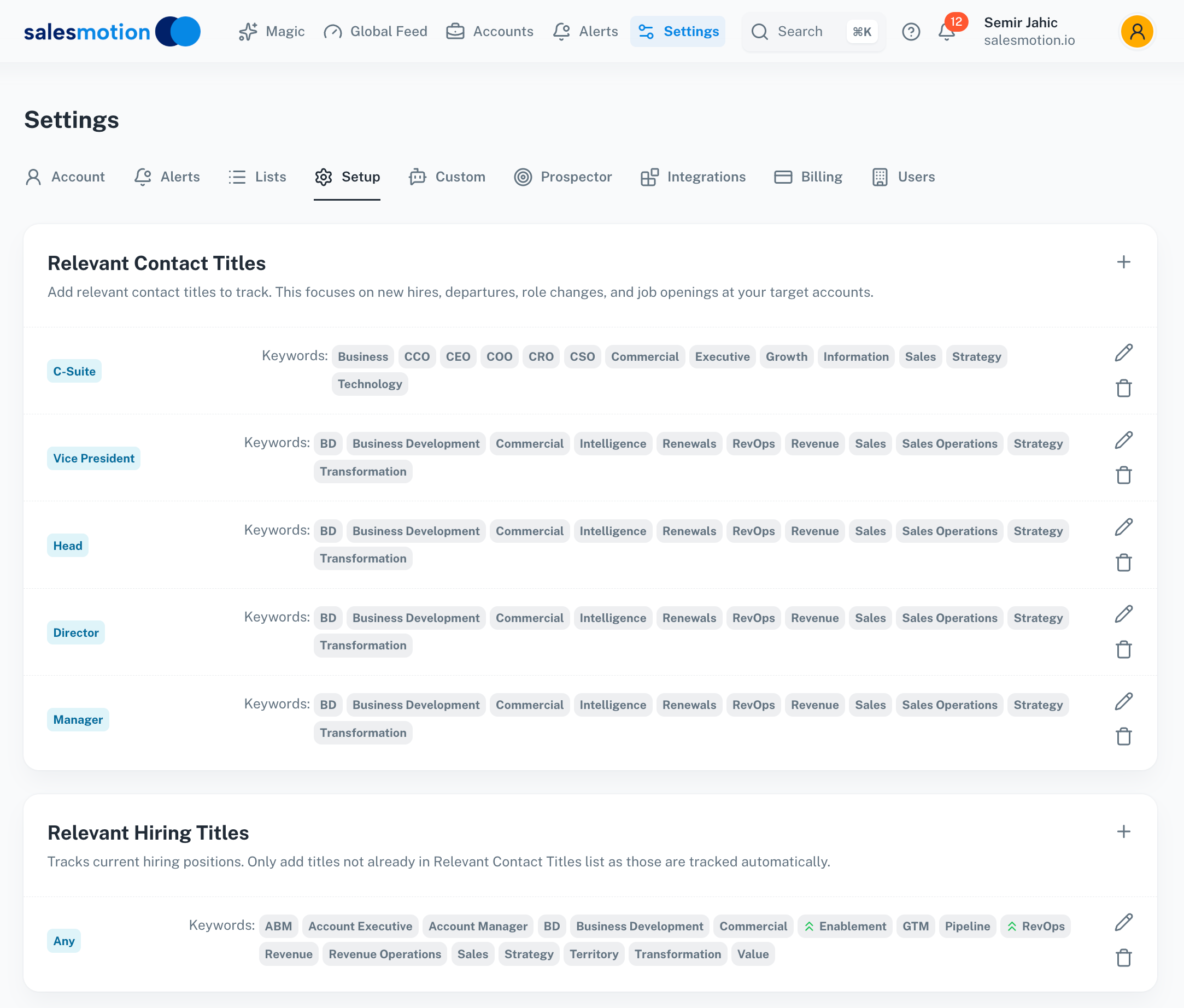 Relevant Hiring Titles use the same seniority-plus-keyword structure as Contact Titles. Here, an "Any" group captures GTM and sales-ops hiring at any level.
How hiring titles differ from contact titles
Both lists use the same structure — a seniority level paired with keywords — but they answer different questions:
| Relevant Contact Titles | Relevant Hiring Titles | |
|---|---|---|
| Tracks | People already at the account | Open job postings the account is recruiting for |
| Powers | Contact prioritisation, people-move signals | Hiring signals (roles opened and closed) |
| When to add | Every buyer role you sell to | Only roles you want as a hiring signal that aren't already a contact title |
The key rule: don't duplicate. Any title already in your Contact Titles list generates hiring signals automatically. Only add a title here if it's a hiring signal you care about but not a person you'd sell to directly.
When to use Hiring Titles
Add a hiring title when the act of recruiting for it tells you something — even if that person isn't your buyer. Common examples:
- RevOps / Sales Ops roles — a company building out revenue operations is often about to review its tooling.
- Enablement, GTM, ABM roles — signals a maturing or scaling sales motion.
- AI / data engineering roles — an early tell for a new product or platform initiative.
- Regional sales roles — hiring reps in a new geography points to expansion.
You can anchor these to a specific seniority, or use the Any level to catch the role at every level of seniority.
Adding hiring titles
- Go to Settings → Setup.
- In Relevant Hiring Titles, click + to add a group, or the pencil icon to edit one.
- Choose a seniority level (or Any).
- Add the keywords that describe the roles to watch for. Press Enter after each.
- Save. Remove a group with the trash icon.
As with contact titles, prefix a keyword with a minus sign (-) to exclude lookalikes — for example -intern to keep internships out of your hiring signals.
What Hiring Titles drive
- Hiring signals — Matching job postings surface as Hiring in [Department], Aggressive Hiring, and Leadership Hiring signals. See the Signal Catalogue.
- Role-closed signals — When a tracked posting is filled or pulled, Salesmotion notes it, which can indicate a recent hire worth researching.
- Timing — A burst of postings for your hiring titles is a strong buying-window trigger, especially when paired with funding or expansion signals.
Salesmotion reads the job description itself, not just the title — so the Tech Match and Hiring with Pain Keywords signals also draw on the language inside postings for the roles you track.
When do changes take effect?
Changes apply on the next scan cycle — usually within 24 hours. To force a fresh scan on a specific account, open it and click Refresh (circular-arrow icon) in the toolbar.
Frequently asked questions
If I add a title to both lists, does it double-count?
You don't need to. Titles in Relevant Contact Titles already generate hiring signals, so adding them here as well is redundant. Keep Hiring Titles for roles that are only interesting as a hiring signal.
Can I track hiring in a specific location?
Location targeting is applied separately from titles and is used to filter job openings by geography. If you sell into specific regions, ask your Salesmotion contact about configuring target locations.
Why am I seeing hiring signals for a title I didn't add?
That title is probably in your Relevant Contact Titles list, which produces hiring signals automatically. Check both lists if a signal is unexpected.
How is this different from a Search Alert?
Hiring Titles shape the workspace-wide hiring signals everyone sees on accounts and in the Global Feed. A Search Alert is a personal notification for a specific query. Use Hiring Titles for structured, ongoing hiring intelligence; use Search Alerts for ad-hoc monitoring.