
What Relevant Contact Titles do
Relevant Contact Titles tell Salesmotion which roles matter to you inside your target accounts. Once configured, they focus the platform on the people you actually sell to — surfacing new hires, promotions, departures, and role changes for those titles, and ranking the right contacts to the top of every account.
You'll find them under Settings → Setup, in the Relevant Contact Titles section. As the section says: "Add relevant contact titles to track. This focuses on new hires, departures, role changes, and job openings at your target accounts."
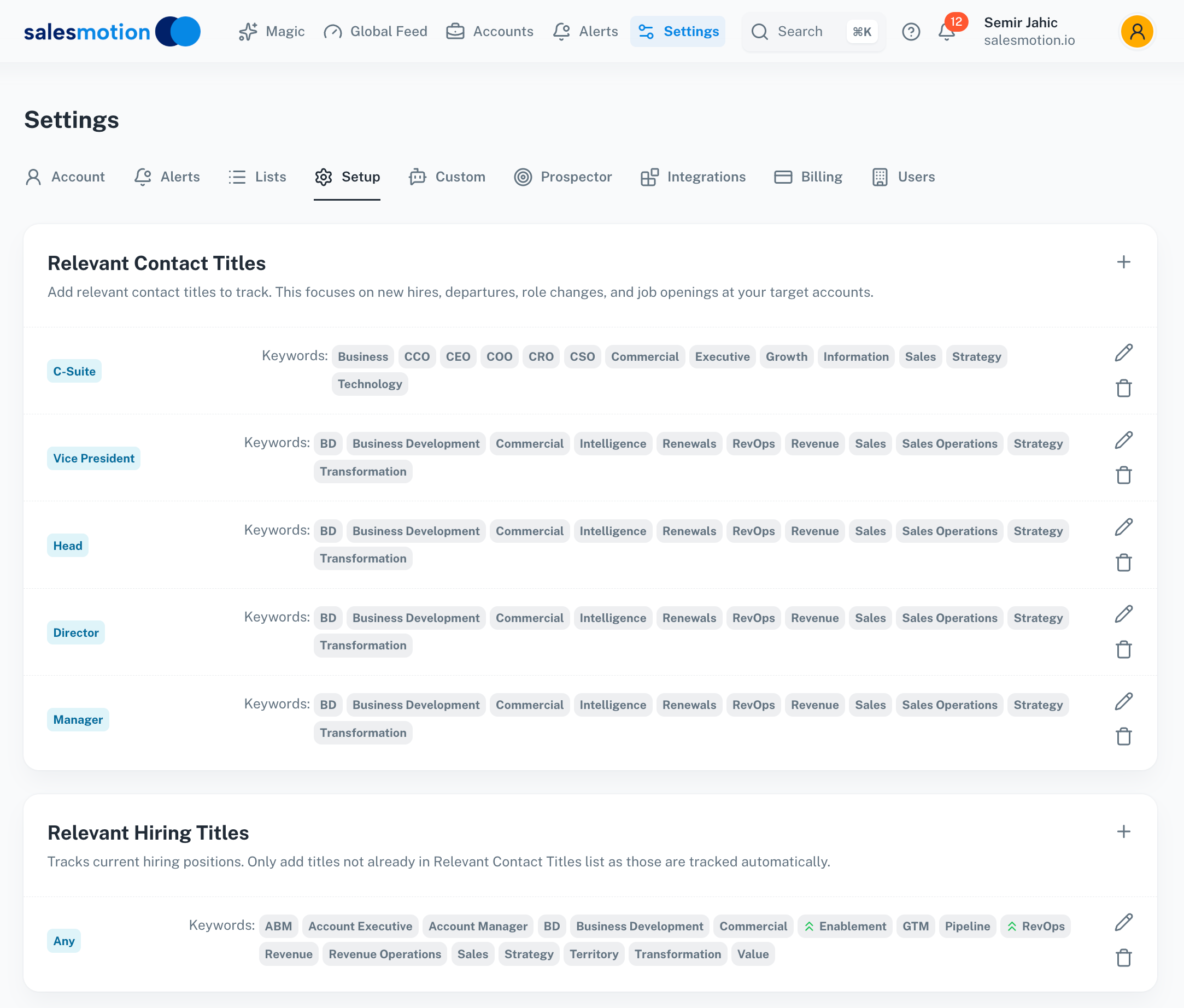 Relevant Contact Titles are grouped by seniority level, and each level carries its own set of keywords.
How titles are structured: seniority + keywords
Contact titles aren't a flat list. Each entry is a seniority level paired with a set of keywords that describe the function you care about at that level.
Seniority levels
Each title group is anchored to a seniority level. The most common ones are:
- C-Suite — Chief-level roles (CEO, CRO, CFO, CIO, CMO, COO, CTO, and so on)
- Vice President — VP, SVP, EVP
- Head — "Head of…" roles
- Director
- Manager
Salesmotion also supports Owner, Founder, Senior, Entry, Intern, and an Any level that matches every seniority. Seniority matching is alias-aware, so "VP" matches "Vice President", "Chief" acronyms map to their function, and common false positives (like Executive Assistant under C-Suite) are excluded automatically.
Keywords per level
Within each seniority level, keywords narrow the match to the function you sell into. For example, a C-Suite group might carry CEO, CRO, CSO, Sales, Revenue, Growth, Strategy, while a Director group carries RevOps, Revenue Operations, Sales, Renewals, Transformation.
A contact is considered relevant when both the seniority and a keyword match — so "VP of Revenue Operations" matches a Vice President group containing Revenue Operations, but "VP of Facilities" does not.
Adding and editing titles
- Go to Settings → Setup.
- In Relevant Contact Titles, click the + to add a new seniority group, or the pencil icon to edit an existing one.
- Choose the seniority level.
- Add one or more keywords for the function you sell to. Press Enter after each.
- Save. Use the trash icon to remove a group you no longer need.
Salesmotion ships with a sensible default set of titles so you get value immediately. Edit or delete these to match your own buyer map.
Excluding roles you don't want
To keep out lookalike titles, add a negative keyword by prefixing it with a minus sign (-). For example, adding -Assistant to a C-Suite group stops "Executive Assistant to the CEO" from matching. Negative keywords are shown separately from positive ones so you can see exactly what's being filtered.
Prioritising the titles that matter most
Keywords can carry a priority — high, medium, or low. Higher-priority matches score more strongly, which pushes the most important contacts higher in account views and weights people-related signals accordingly. Start everything at the default and raise priority only for the handful of roles that are your true decision-makers.
What Contact Titles drive
Getting this right improves several parts of the product at once:
- Contact prioritisation — Contacts matching your titles rise to the top of the Contacts tab on every account.
- People-move signals — New hires, promotions, and departures for these roles are detected and surfaced as contact & people signals (New Executive Hire, Promotion Identified, Key Departure).
- Outreach targeting — The Prospector uses your titles to find the right people to reach out to and tailor messaging to their role.
When do changes take effect?
Changes are picked up on the next scan cycle — for most accounts within 24 hours. To see updated contacts on a specific account immediately, open that account and click the Refresh button (circular-arrow icon) in the toolbar.
Contact Titles vs Hiring Titles
Contact Titles track the people already at an account. Relevant Hiring Titles track open job postings — the roles a company is actively recruiting for. They use the same seniority-plus-keyword structure, but you only need to add hiring titles that aren't already in your Contact Titles list, since those are tracked automatically. See Setting Up Relevant Hiring Titles.
Frequently asked questions
How many titles can I add?
There's no hard limit. Start with the seniority levels and keywords that describe your core buying committee, then refine as you see which contacts and signals surface.
Are Contact Titles workspace-wide?
Yes. Titles are a workspace setting and apply to everyone in your organisation, so scoring and contact prioritisation stay consistent across the team. Only admins can edit them.
Why isn't a contact I expected showing up?
Check that both the seniority and a keyword match the person's title, and that no negative keyword is excluding them. "Director of Revenue Operations" needs a Director group containing a keyword like Revenue Operations or RevOps.
Do I need Contact Titles to get signals at all?
No — news, funding, earnings, and other company-level signals flow regardless. But contact and hiring signals, and contact prioritisation, are only as good as the titles you configure here.