
What Relevant Topics do
Relevant Topics are the words and phrases Salesmotion watches for across public web sources. They tell the platform which themes matter to your business — so relevant news, earnings mentions, and press get surfaced in your Signal Feed, scored higher, and highlighted inside long documents.
You'll find them under Settings → Setup, in the Relevant Topics section. As the section says: "Add topics to monitor across public web sources and surface in the Signal Feed. You can include generic topics and industry-specific topics such as competitor names, acronyms, or any other specialized relevant keywords."
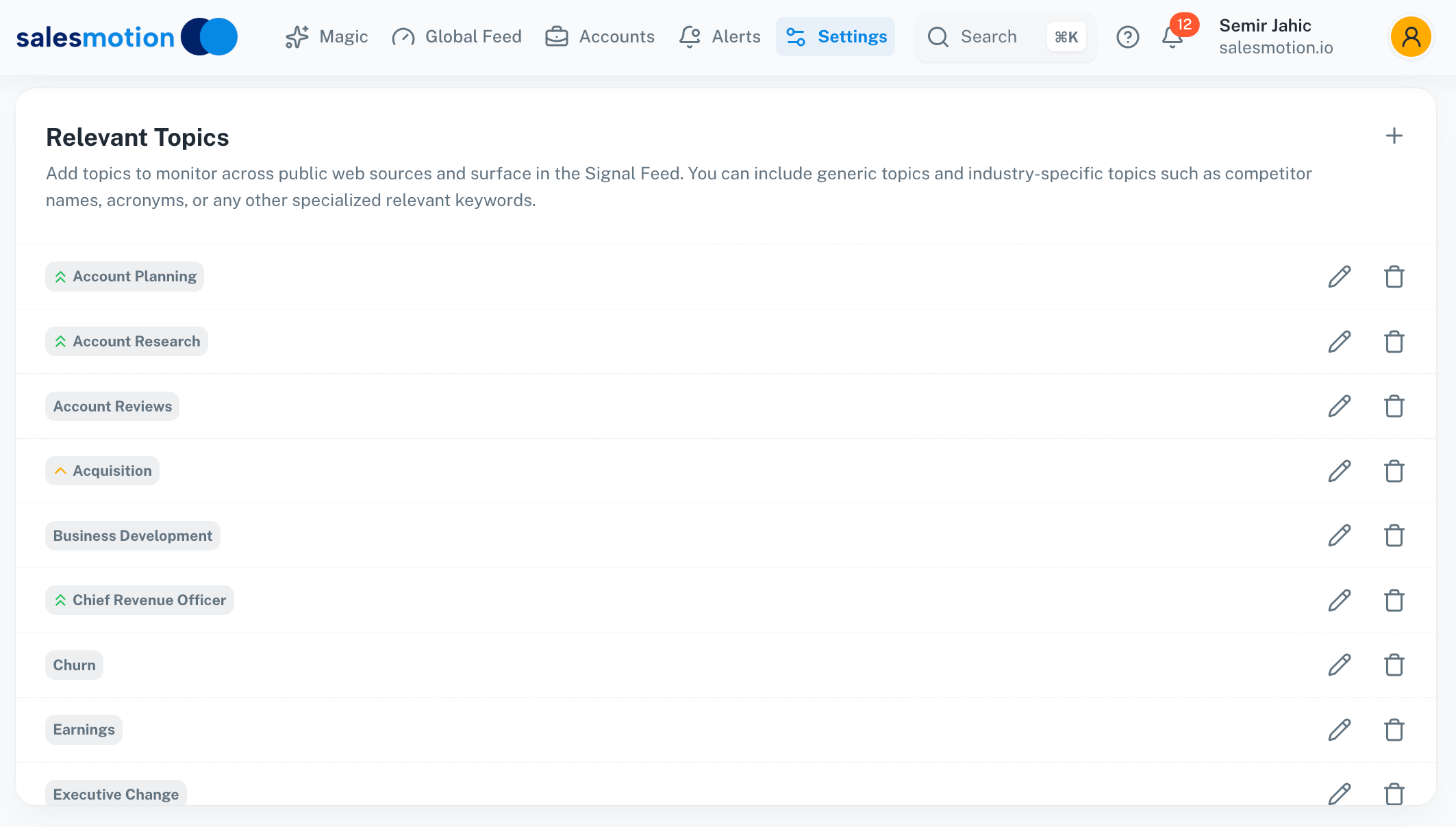 Relevant Topics monitored across public sources. The small arrows show each topic's priority.
What to add
Add terms that describe your product, your buyers' challenges, the outcomes you enable, and the players in your market. Good categories to cover:
- Product & category terms — "digital transformation", "revenue operations", "signal-based selling"
- Pain points — "pipeline", "cost reduction", "churn", "operational efficiency"
- Trigger themes — "acquisition", "funding", "earnings", "expansion", "layoff"
- Competitor names, acronyms, and jargon — track when a competitor or a methodology (e.g. "MEDDPIC", "ABM") shows up in the public domain
Salesmotion pre-populates a starter set of common topics (CEO, Growth, Expansion, Merger, Acquisition, Layoff, Launch, Earnings, Revenue, IPO, Funding, Partnership, Hiring, Competition, Risk, and more) so you get relevant intelligence from day one. Edit these to fit your market.
Adding topics
- Go to Settings → Setup.
- In Relevant Topics, click the + to add a topic, or the pencil icon to edit one.
- Type the topic. You can paste several at once, separated by commas or new lines, to add them in bulk.
- Save. Remove a topic with the trash icon.
Matching is done on word boundaries with root-word handling, so "acquire", "acquired", and "acquisition" are treated as the same theme.
Setting priority
Each topic can carry a priority, shown as a small arrow next to it:
- High (green) adds the most weight — use it for your handful of make-or-break themes.
- Medium (amber) adds moderate weight.
- Low / default (no arrow) adds a small weight.
Higher-priority topics push matching signals up your feed and increase their contribution to the account's relevance. Keep most topics at default and reserve high priority for the few themes that genuinely separate a hot signal from noise.
Excluding noise
To filter out a term, add it as a negative topic by prefixing it with a minus sign (-), or toggle it to negative in the editor. When Salesmotion encounters an excluded term, that content is deprioritised or dropped. For example, exclude -intern or -webinar if those keep cluttering your feed. (Negative topics don't carry a priority — they only subtract.)
What Topics drive
- Signal Feed relevance — Signals mentioning your topics surface in the Global Feed and account Signals tab.
- Relevant News matching — Your topics decide which of the day's news counts as relevant to you.
- Scoring — Topic matches feed into the Salesmotion Score and account prioritisation.
- Search & highlighting — Your topics power Search and are highlighted inside earnings transcripts, filings, and articles so you can jump straight to what matters.
When do changes take effect?
Topics are applied on the next scan cycle — for most accounts within 24 hours. To refresh a single account immediately, open it and click Refresh (circular-arrow icon) in the toolbar.
Frequently asked questions
How many topics should I add?
Start with 10–20 high-value terms and grow from there. Too many broad topics dilutes relevance; a focused list keeps your feed sharp.
Topics vs Search Alerts — what's the difference?
Topics (here in Setup) tune scoring and relevance for your whole workspace and shape what everyone sees. A Search Alert is a personal notification for one specific query. Use topics for workspace-wide tuning, Search Alerts for individual monitoring.
Can I track a competitor?
Yes — add the competitor's name (and any product names or acronyms) as a topic. You'll then be alerted when they appear in news, earnings, reviews, or filings for your accounts.
A topic is producing too much noise. What should I do?
Make it more specific (a phrase rather than a single common word), lower its priority, or add a negative topic to strip out the noisy context. Use Search to preview what a term returns before relying on it.