
Why Setup matters
Salesmotion monitors 1,000+ public data sources for every tracked account, but the intelligence it surfaces is only as good as the configuration behind it. The Setup section in Settings is where you tell Salesmotion what matters to your business — which keywords to watch for, which job titles represent your buyers, and which signals to filter out.
Getting this right means more relevant scores, better AI-generated messaging, and less noise in your alerts and feeds. We recommend configuring Setup before adding your first accounts, so the initial scan is tuned to your priorities from day one.
To access Setup, navigate to Settings → Setup in the left sidebar.
The Setup sections at a glance
This article is the overview. Each Setup section has a dedicated deep-dive guide:
- Relevant Contact Titles — the buyer roles you sell to, by seniority and keyword. Drives contact prioritisation and people-move signals.
- Relevant Hiring Titles — the open job postings to watch for. Drives hiring signals.
- Relevant Topics — the keywords, themes, and competitor names monitored across public sources. Drives Signal Feed relevance and scoring.
- Relevant Technologies — the tools and platforms your accounts use. Surfaces on each account's Tech tab.
- Company Information — your product, buyers, and value proposition, used to personalise all AI-generated output.
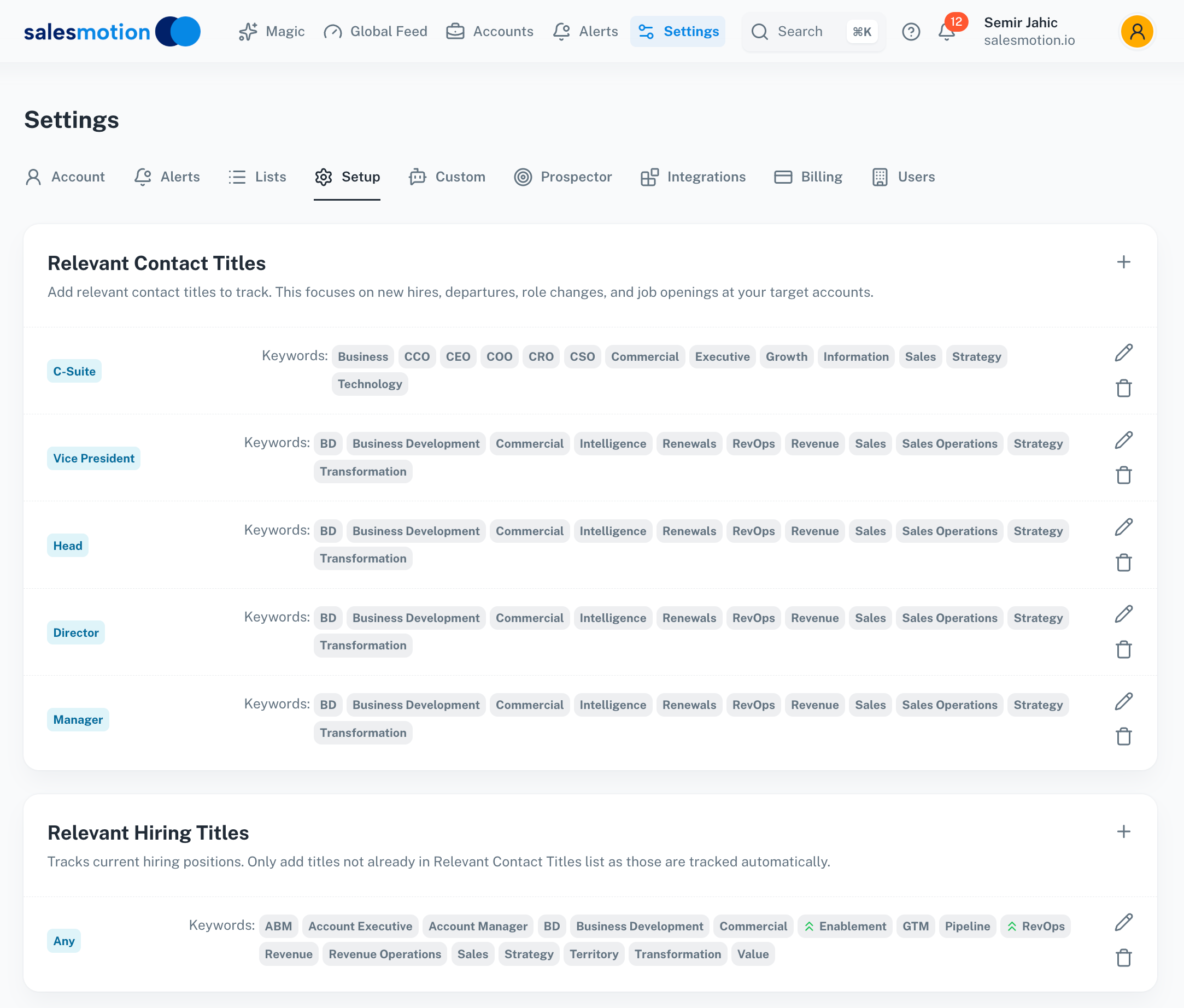 The Setup tab — configure relevant contact titles and hiring titles with keyword tags for each seniority level.
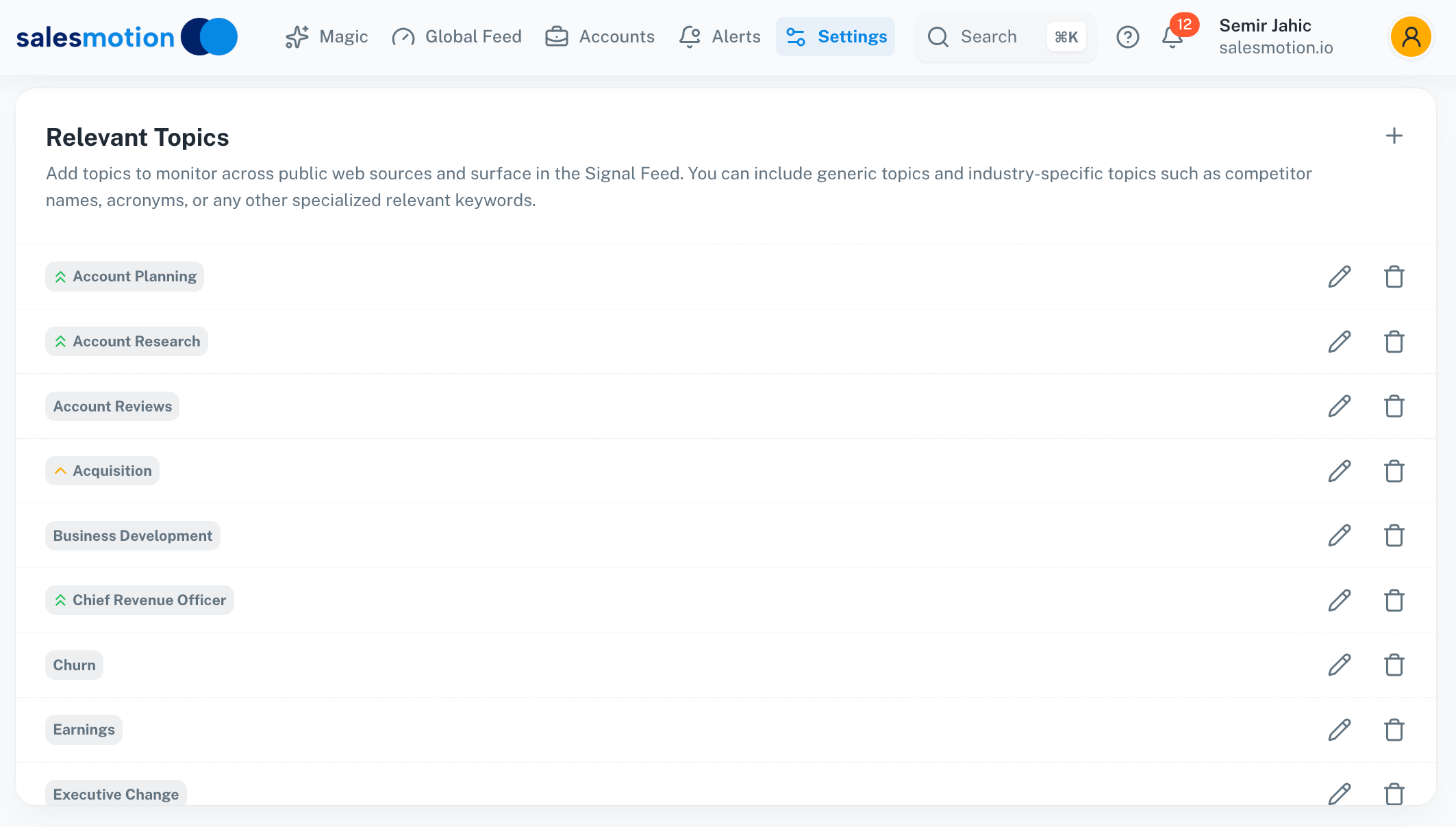 Relevant Topics — add industry-specific topics, competitor names, and keywords to monitor across public data sources.
Keywords and relevant terms
Keywords tell Salesmotion which topics are most important to your business. They're used to:
- Score signals — Signals that mention your keywords receive higher relevance scores.
- Surface insights — AI-generated summaries and Magic insights prioritise information related to your keywords.
- Power search — Your keywords help Salesmotion highlight the most relevant passages in earnings transcripts, filings, and news articles.
What to add
Add terms that relate to your product, your buyers' challenges, and the business outcomes you enable. Examples:
- Product-related: "digital transformation", "cloud migration", "revenue operations"
- Pain points: "cost reduction", "operational efficiency", "data silos"
- Industry terms: "procurement", "supply chain", "regulatory compliance"
- Competitor names: Track when your competitors are mentioned in earnings calls or news
How to add keywords
- Go to Settings → Setup.
- Find the Keywords section.
- Type each keyword or phrase and press Enter to add it.
- Save your changes.
You can add as many keywords as you need. Start with 10–20 of your most important terms and refine over time based on the intelligence you see.
Job titles to track
Adding job titles tells Salesmotion which roles represent your buyer personas. This helps with:
- Contact prioritisation — Contacts matching your configured titles appear higher in the Contacts tab.
- Hiring signal relevance — Job postings for your target titles get flagged as high-relevance signals.
- AI messaging — The Prospector uses your title configuration to identify the right people to reach out to and tailor messaging accordingly.
What to add
Add the titles of the people you typically sell to. Examples:
- "VP of Sales", "Chief Revenue Officer", "Head of Revenue Operations"
- "VP of IT", "CTO", "Director of Engineering"
- "Head of Procurement", "CFO", "VP of Finance"
Use the titles as they commonly appear in job postings — Salesmotion will match variations automatically.
Excluding irrelevant signals
Not every signal is useful. If your feed is cluttered with noise — for example, internship job postings or irrelevant press releases — you can use exclusions to filter them out.
How exclusions work
Use a minus sign (-) before a term to exclude it. When Salesmotion encounters a signal containing an excluded term, it will be deprioritised or filtered out of your results.
Common exclusions
| Exclusion | What it filters out |
|---|---|
-intern | Internship job postings |
-internship | Internship programme announcements |
-junior | Junior-level roles |
-part-time | Part-time positions |
-volunteer | Volunteer roles |
Example
If you're tracking VP-level hiring but your feed is full of intern and junior postings, add these exclusions:
-intern
-internship
-junior
-entry-level
This immediately cleans up your hiring signals to show only the roles that matter to your team.
Your company information (value proposition)
The Company Information section lets you describe your company's product and the value it delivers, across a set of focused fields — Company Overview, Product Features and Capabilities, Problems/Pains and Challenges, Outcomes and Benefits, Competitors and Differentiation, Case Studies, and Industry Terminology. Salesmotion uses this to:
- Generate personalised messaging — The Prospector and Magic features use your value prop to craft outreach that connects your solution to each account's specific situation.
- Build the Value Pyramid — The AI-generated Value Pyramid maps your solution's capabilities to each account's goals and challenges. Without a value proposition, Value Paths won't be personalised to your business.
- Score signal relevance — Signals that align with your value proposition receive a higher relevance weighting.
What to write
Be specific and customer-focused. Instead of generic marketing language, describe:
- What your product does in plain terms.
- Who it's for (the roles and types of companies).
- What outcomes it delivers (cost savings, efficiency gains, revenue growth).
Example:
"We provide AI-powered account intelligence for B2B sales teams. We help enterprise sales reps reduce research time by 80% and increase pipeline coverage by monitoring 1,000+ data sources for buying signals, leadership changes, and strategic initiatives across their target accounts."
For the full field-by-field guide, see Setting Up Company Information.
When do changes take effect?
- Keywords, titles, and exclusions process automatically with the next scan cycle. For most accounts, this means your changes are reflected within 24 hours.
- To force an immediate update on a specific account, go to the account's detail page and click the Refresh button (circular arrow icon) in the toolbar. This triggers a fresh scan using your updated configuration.
- Value proposition changes take effect on the next AI-generation cycle. Refresh individual accounts to see updated Value Pyramids and messaging sooner.
Tips for getting the most from Setup
- Configure Setup before adding accounts. This ensures the first scan is tuned correctly and you get relevant intelligence from the start.
- Start broad, then refine. Begin with 10–20 keywords and add more as you see what's useful. It's easier to add specificity than to start over.
- Review your exclusions monthly. As your focus shifts, your exclusions should too. Remove exclusions that are no longer relevant and add new ones as noise patterns emerge.
- Be specific in your value proposition. The more concrete your value prop is, the better the AI-generated messaging and Value Pyramids will be. Generic descriptions produce generic output.
- Coordinate with your team. Setup is workspace-wide — changes you make affect everyone. Discuss keyword and title changes with your team before making them, especially if you have a large organisation.
- Use Search to validate your keywords. After configuring keywords, use Search to check whether your terms are returning relevant results across your accounts. If a keyword produces too much noise, consider replacing it with a more specific phrase.
Frequently asked questions
Do I need to re-run anything after changing keywords?
No. Changes are picked up automatically on the next scan cycle (within 24 hours). If you want immediate results for a specific account, use the Refresh button on the account page.
Can different team members have different keywords?
No. Keywords, titles, and exclusions are workspace-wide settings — they apply to all users in your organisation. This ensures everyone sees consistent scoring and intelligence. If your team has different focus areas, consider setting up separate account lists and using Search Alerts for individual topic monitoring.
How many keywords can I add?
There's no hard limit, but we recommend starting with 10–20 high-priority terms. Too many keywords can dilute the relevance scoring. Focus on the terms that genuinely differentiate strong buying signals from noise.
What's the difference between keywords and Search Alerts?
Keywords (in Setup) affect how Salesmotion scores and surfaces signals across your entire workspace — they influence the Salesmotion Score, AI summaries, and feed prioritisation. Search Alerts are personal notifications for specific queries that email you when new matches appear. Use keywords for workspace-wide tuning and Search Alerts for individual topic monitoring.
Can I see which keywords are currently configured?
Yes. Go to Settings → Setup to view and edit all configured keywords, titles, exclusions, and your value proposition. Only workspace admins can make changes.