
What Relevant Technologies do
Relevant Technologies tell Salesmotion which tools and platforms to watch for across public web sources. When a tracked technology shows up in an account's public footprint — most often in the job descriptions they publish — Salesmotion records it and surfaces it on the account, so you can see which of your accounts already run (or are hiring for) a stack that matters to you.
You'll find them under Settings → Setup, in the Relevant Technologies section: "Add technologies to monitor across public web sources and surface in account details. You can include generic technologies and industry-specific technologies such as competitor names, acronyms, or any other specialized relevant technologies."
Why track technologies
Technology tracking is a fit-and-targeting lever. It's most useful for:
- Integration and complementarity — flag accounts running a platform you plug into (e.g. Salesforce, HubSpot, Snowflake), so you can lead with the integration angle.
- Competitive displacement — flag accounts running a competing tool, so you know where a rip-and-replace conversation is possible.
- Qualification — confirm an account has the technical prerequisites your product assumes before you invest time in it.
When a job posting for one of your tracked technologies appears, it also contributes to the Tech Match signal — a confirmed user you can personalise a use-case around. See the Signal Catalogue.
Adding technologies
- Go to Settings → Setup.
- In Relevant Technologies, click the + to add a technology.
- Search by name — Salesmotion draws from a curated catalogue of thousands of tools (sourced from StackShare and G2), each with its category, popularity, and logo. Start typing and pick from the matches.
- Add as many as you need, then save. Remove one with the trash icon.
Because technologies come from a curated catalogue rather than free text, matching is precise and case-aware — this preserves names like "TypeScript" or "Outreach" and avoids the false positives you'd get from matching those words in ordinary prose.
How tracked technologies appear on an account
Once configured, matched technologies show up on each account's Tech tab, in the Account Technologies table — the technology, a count of how many signals reference it, and links to the underlying references (for example, the specific job postings that mention it).
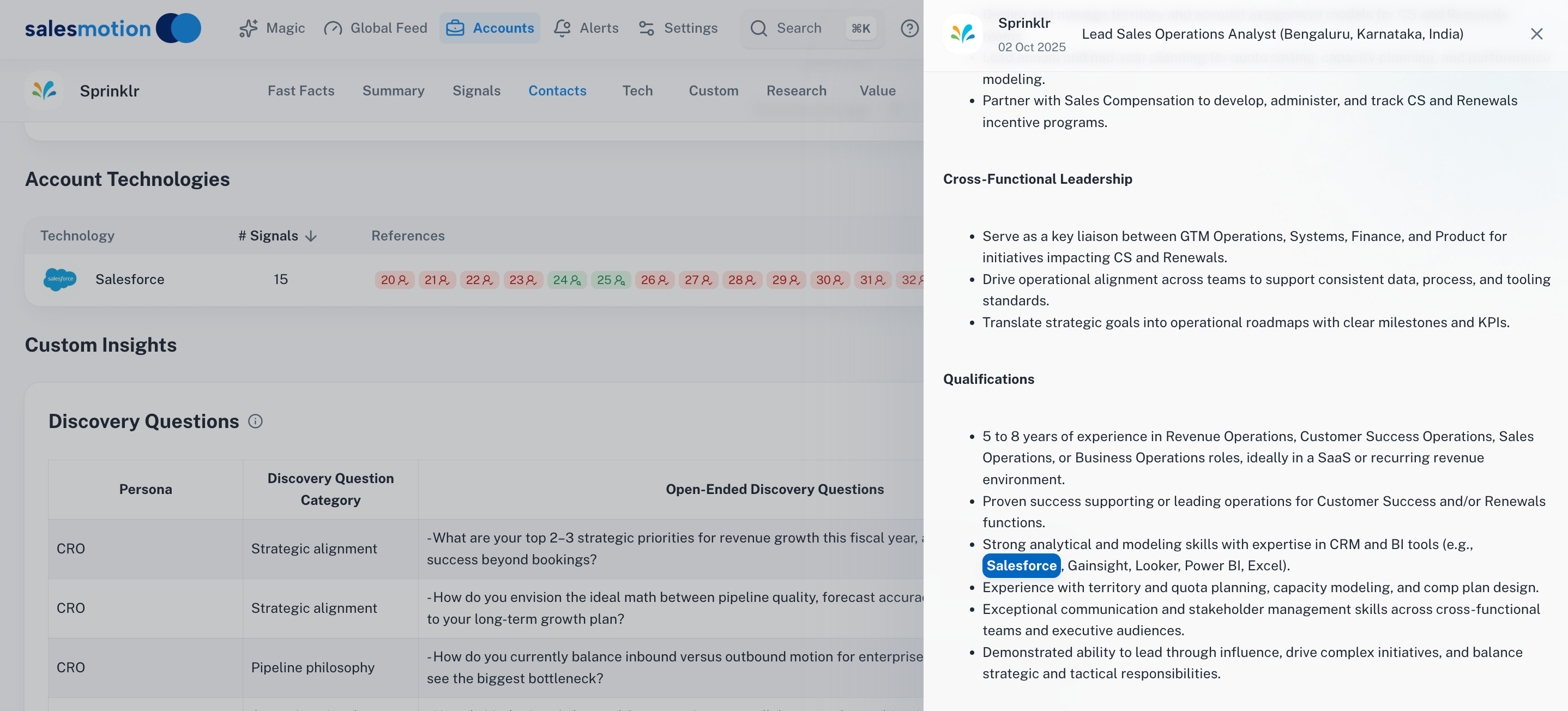 Tracked technologies surface on the account's Tech tab, with the number of signals referencing each tool and links back to the source.
When do changes take effect?
Technologies are applied on the next scan cycle — usually within 24 hours. To pull fresh technology intelligence for a single account right away, open it and click Refresh (circular-arrow icon) in the toolbar.
Frequently asked questions
Where do technology detections come from?
From public sources only — primarily the job descriptions companies publish, plus other public web content. Salesmotion doesn't use private tech-install databases or scraped social feeds. See How Salesmotion Collects Data.
Can I add a technology that isn't in the catalogue?
The catalogue is broad and curated for accuracy. If a tool you need is missing, ask your Salesmotion contact — the catalogue is maintained centrally rather than by free-text entry, which keeps matching reliable.
How is this different from tracking a competitor as a topic?
For a competitor's software, add it as a Relevant Technology — you'll see which accounts actually use it, on the Tech tab. To catch a competitor being mentioned in news, earnings, or filings, add their name as a Relevant Topic. Many teams do both.
Why isn't a technology showing on an account?
Salesmotion can only surface a technology if it appears in that account's public footprint (for example, in a current job posting). Private companies with little public hiring activity may show few or no technologies. Try the account's Refresh button, and confirm the technology is in your Setup list.