
What is Search?
Search lets you query across every tracked account and every signal type in your workspace at once. Instead of browsing accounts individually or scrolling the Global Feed, you can type a keyword or phrase and instantly surface every mention across news articles, earnings transcripts, SEC filings, job postings, podcasts, and more.
This is especially powerful when you want to track a specific topic — like a methodology, a competitor name, or a strategic initiative — across your entire book of business.
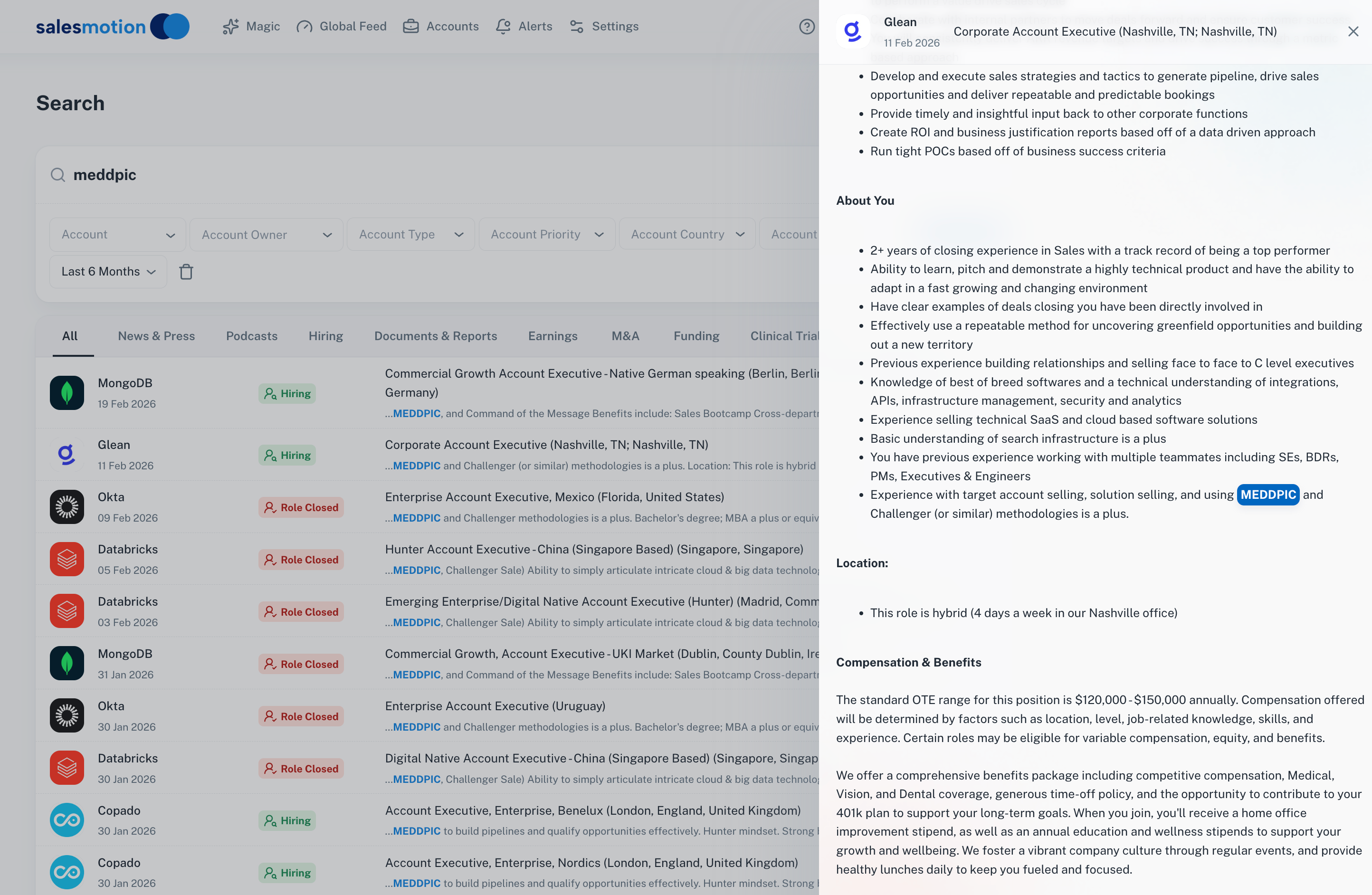 Searching for "MEDDPIC" returns matches across accounts like MongoDB, Okta, and Databricks — clicking a result opens the full detail, including highlighted keyword matches.
How to search
- Click Search in the left sidebar to open the Search page.
- Type your keyword or phrase into the search bar and press Enter.
- Results appear grouped by signal type, with count badges on each tab so you can see where matches are concentrated.
The filter bar
Above your results, you'll find filters to narrow down what you see:
- Account — Limit results to one or more specific accounts.
- Account Owner — Filter by the team member who owns the account.
- Account Type — Focus on a particular account segment.
- Account Priority — Show only high-priority or low-priority accounts.
- Account Country — Filter by the account's geography.
- Account List — Narrow results to a specific list (e.g. "Enterprise EMEA" or "Renewals Q2").
- Time range — Choose how far back to search (e.g. last 7 days, last 3 months, last year).
Signal type tabs
Below the search bar, tabs let you filter results by signal type. Each tab displays a count badge showing how many results matched in that category:
- All — Every signal type combined.
- News & Press — Company announcements, articles, and media coverage.
- Hiring — Job postings that mention your search term.
- Earnings — Quarterly and annual earnings transcripts.
- Documents & Reports — SEC filings, 10-K reports, whitepapers, and research.
- M&A — Merger and acquisition activity.
- Podcasts — Podcast episodes mentioning your keyword.
Keyword highlighting
When you search for a term, Salesmotion highlights every occurrence in blue within the signal detail view. This makes it easy to scan lengthy documents — like a 50-page earnings transcript or a dense 10-K filing — and jump straight to the relevant sections.
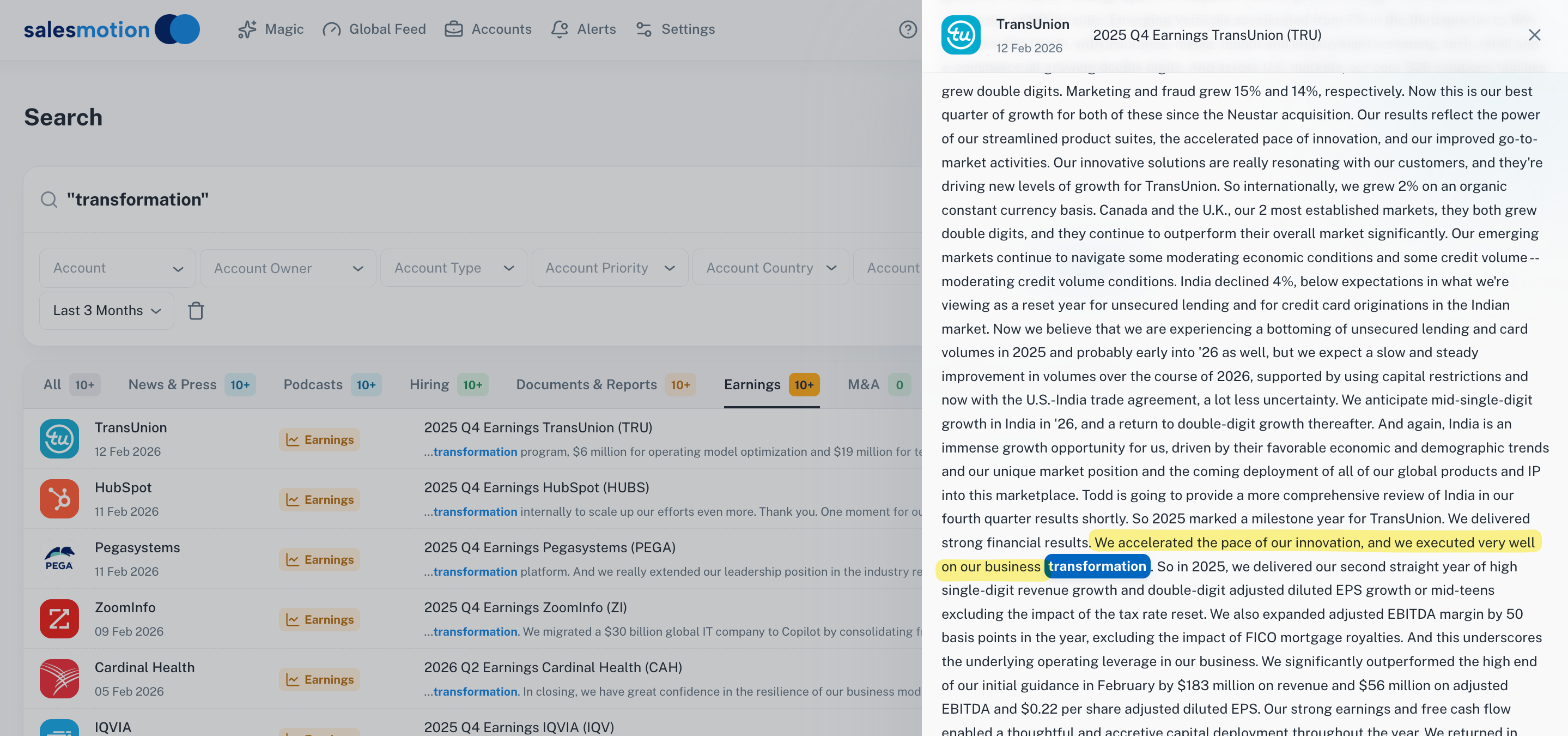 The keyword "transformation" is highlighted in blue throughout the earnings transcript, so you can quickly find the most relevant passages.
Searching across content types
Search works across every type of content Salesmotion monitors. Here are a few examples of what you can find:
Job postings
Search for methodology terms like "MEDDPIC", "Challenger Sale", or "SPIN Selling" in job postings to identify accounts that use specific sales methodologies. This can help you tailor your outreach or find prospects who are already familiar with your approach.
Earnings transcripts
Search for terms like "cost reduction", "digital transformation", or a competitor's name to find exactly where those topics were discussed during an earnings call. The highlighted keywords help you pinpoint the relevant quotes for your meeting preparation.
SEC filings and reports
Filter to Documents & Reports to search within 10-K filings, annual reports, and regulatory documents. This is invaluable for understanding an account's strategic direction, risk factors, and financial commitments.
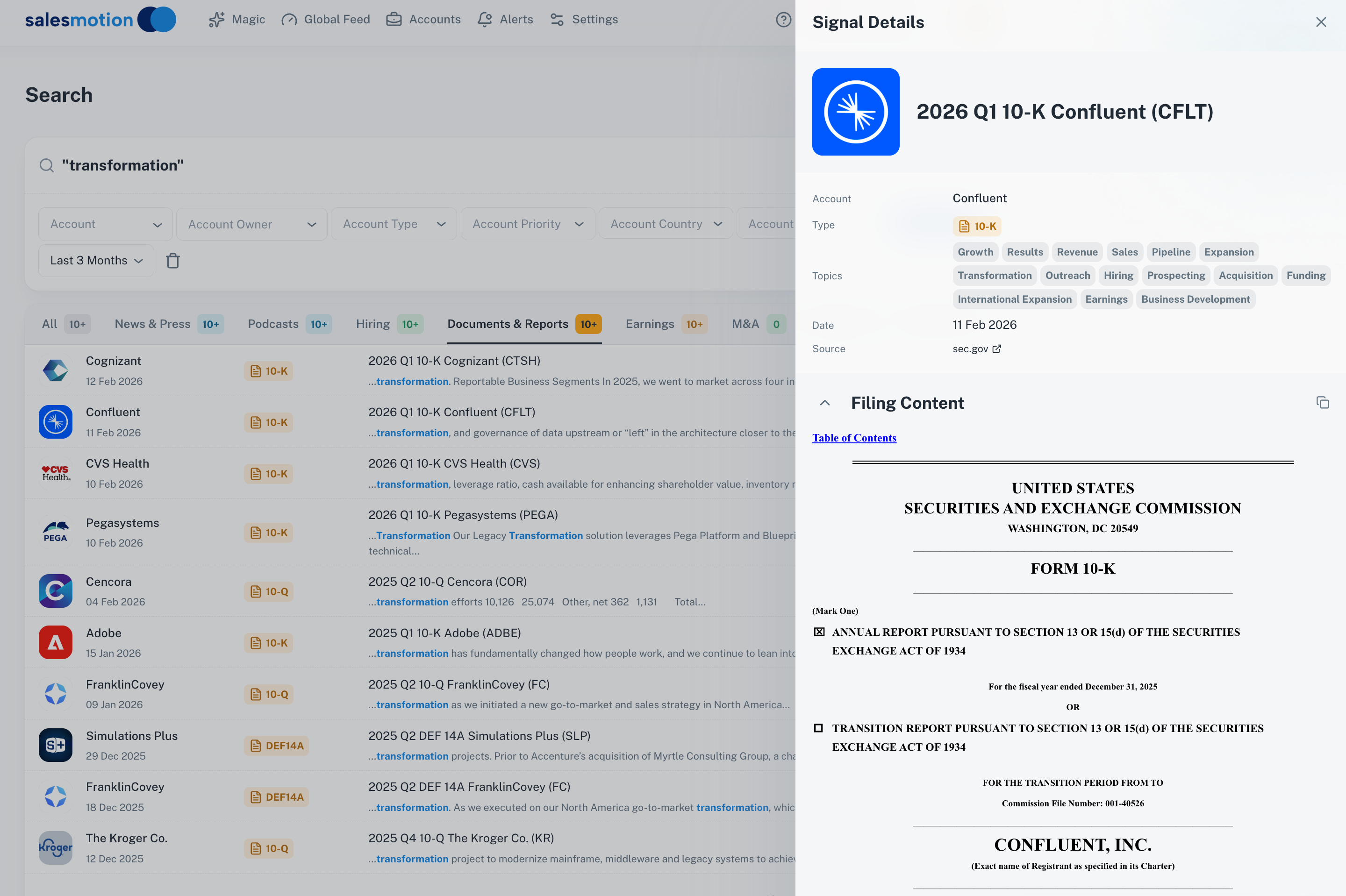 Filtering to Documents & Reports surfaces matches in SEC filings — here showing a 10-K from Confluent with the full filing content available in the detail drawer.
News articles
Filter to News & Press to find media coverage, press releases, and announcements that mention your keyword across all tracked accounts.
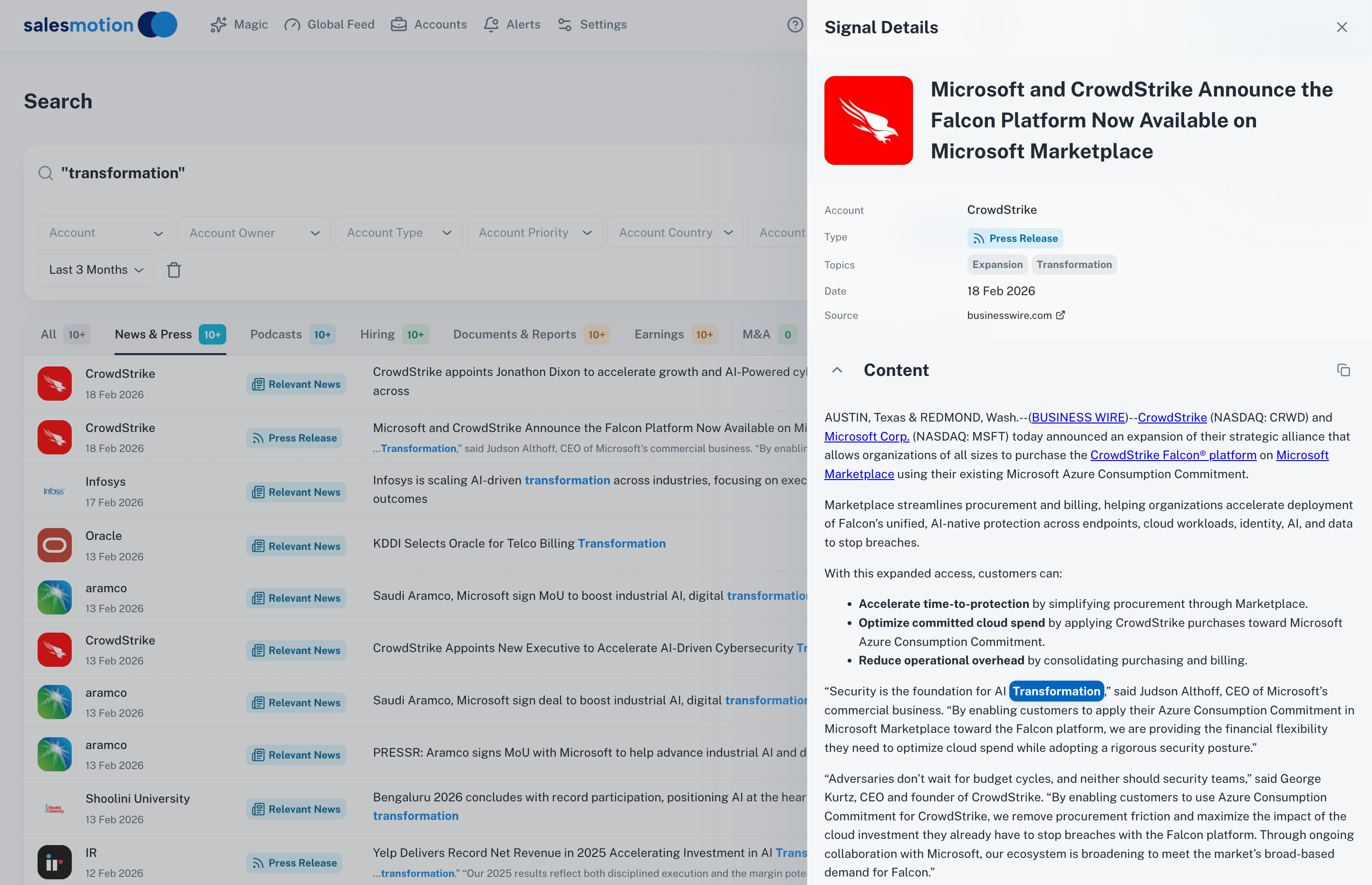 News results show articles from CrowdStrike, Infosys, Oracle, and others — click any result to read the full article with keywords highlighted.
Creating a Search Alert
If you search for a topic regularly, you can turn that search into an automated alert. Salesmotion will monitor for new matches and notify you on your chosen schedule.
- Run your search with the keyword and any filters you want.
- Click the Create Alert button.
- In the dialog that appears, configure:
- Search query — Pre-filled with your current search term.
- Time range — How far back to look for new matches (e.g. "In the last 3 months").
- Alert Name — Give it a descriptive name so you can identify it later.
- Alert Frequency — Choose Daily or Weekly delivery.
- Notification Type — Select Email to receive results in your inbox.
- Email CC — Optionally add colleagues who should also receive the alert.
- Active toggle — Turn the alert on or off at any time.
- Click save, and your alert is live.
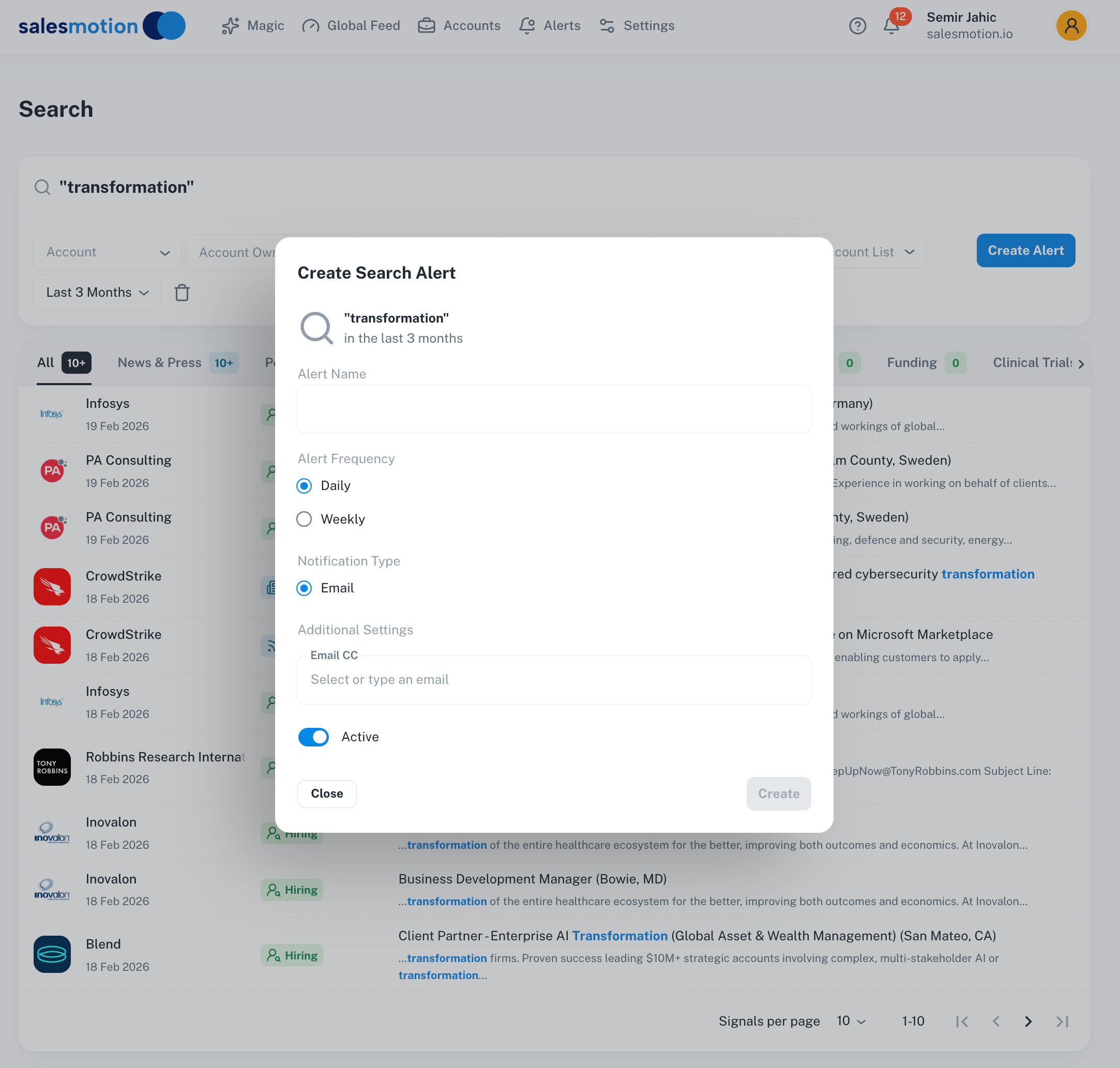 The Create Search Alert dialog lets you set the frequency, notification type, and recipients — so you never miss a relevant mention.
Tips for getting the most from Search
- Search for competitor names across your accounts to see where competitors are being mentioned in earnings calls, news, or job postings. This gives you early warning of competitive threats.
- Search for methodology terms like "MEDDPIC" or "Challenger" in job postings to identify accounts that use a specific sales framework — these prospects may be a better fit for your solution.
- Use Search Alerts for ongoing monitoring. Set up weekly alerts for your top three or four keywords so you're automatically notified when something new appears.
- Combine filters with keywords for precision. For example, search for "AI" filtered to Earnings + your territory to find accounts discussing AI investment in their financial results.
- Share findings with your team. When a search surfaces a relevant insight — such as a competitor being discussed in an earnings call — share it with colleagues who own related accounts.
Frequently asked questions
How is Search different from the Global Feed?
The Global Feed shows all signals in a timeline format, organised by account. Search lets you query across all signals for a specific keyword or phrase, making it ideal for topic-based research. Think of the Global Feed as your daily briefing and Search as your investigative tool.
Can I edit or delete a Search Alert?
Yes. You can manage your active alerts from the Search page. Toggle an alert off if you want to pause it, or delete it entirely if it's no longer needed.
Does Search work across all signal types?
Yes. Search queries every signal type Salesmotion monitors, including news, earnings, job postings, SEC filings, podcasts, and M&A activity. Use the signal type tabs to focus on a specific category after searching.