
Salesmotion's agents watch 1,000+ public sources for every account you track. The buying signals and the account research show up on the Account, Opportunity, Contact and Lead pages your reps already work in.
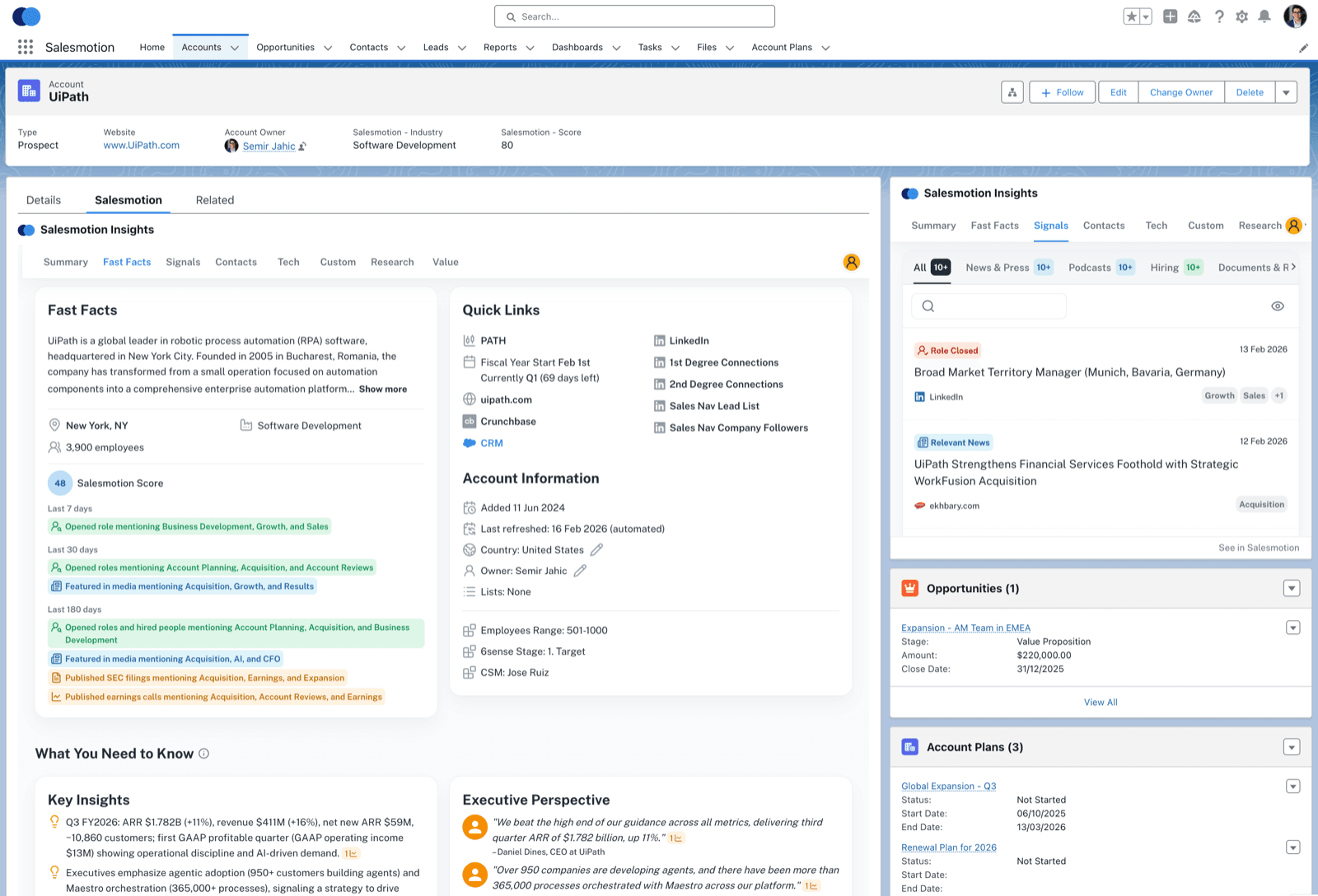
The reason to reach out and the research behind it, on the record they already have open.
The Salesmotion Insights component shows the matching Salesmotion account on Account, Opportunity, Contact and Lead pages. Contacts and Opportunities use their Account. Leads use the Lead's website.

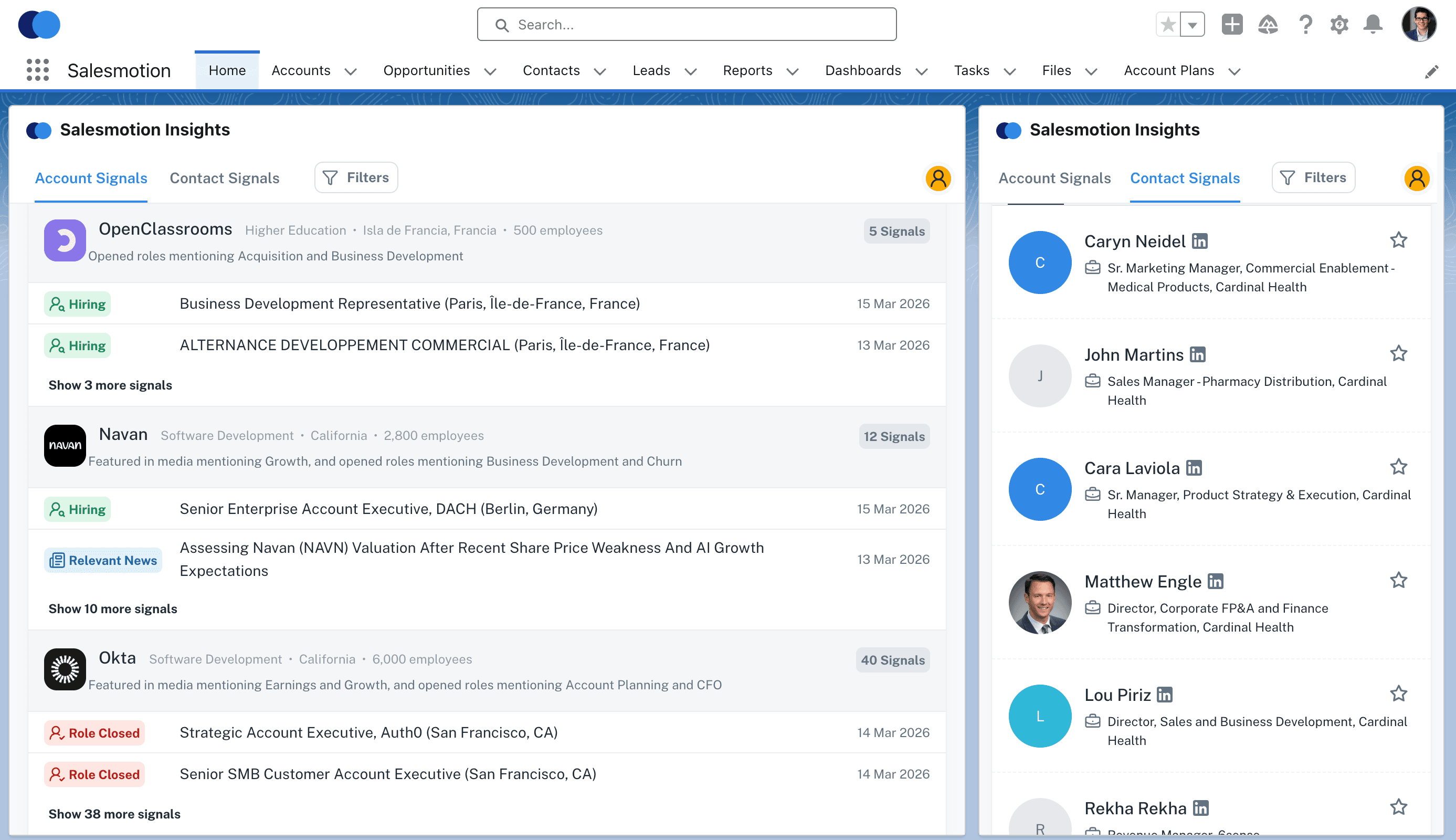
On the Salesforce Home page, the component shows the Salesmotion feed. Reps open it on Account Signals or Contact Signals and see what changed across their accounts.
Map the Salesmotion score, Key Insights, Top News, Talking Points, signal counts and a link back to Salesmotion to Account fields. Use them in list views, reports and dashboards.
Account owners sync from Salesforce, matched by email. Map any Salesforce field, custom fields included, into Salesmotion and filter your accounts by it.
One connection and one package. Salesmotion keeps Salesforce up to date from then on.
A Salesmotion admin clicks Connect in Settings and signs in as a dedicated Salesforce integration user. Sandbox orgs connect the same way.
Connecting SalesforceThe Salesmotion Insights package adds the Lightning component. Once Salesforce is connected, the exact install links for your org are in Salesmotion's Salesforce settings.
Package setupSalesmotion matches your accounts to Salesforce Accounts and syncs every 12 hours. An admin can sync any time. Every run is listed in the sync log.
Choose the direction for each field: Salesmotion to Salesforce, or Salesforce to Salesmotion. Custom fields work both ways.
Custom field mappingReps add the contacts and accounts they find in Salesmotion to Salesforce in one click. A contact is created as a Contact under its linked Account, or as a Lead when there is none.
Adding contacts and accountsTrack the Accounts your synced owners own, or the Accounts in a list view, a report or a checkbox field. You can also import specific Accounts once.
Importing accounts from your CRM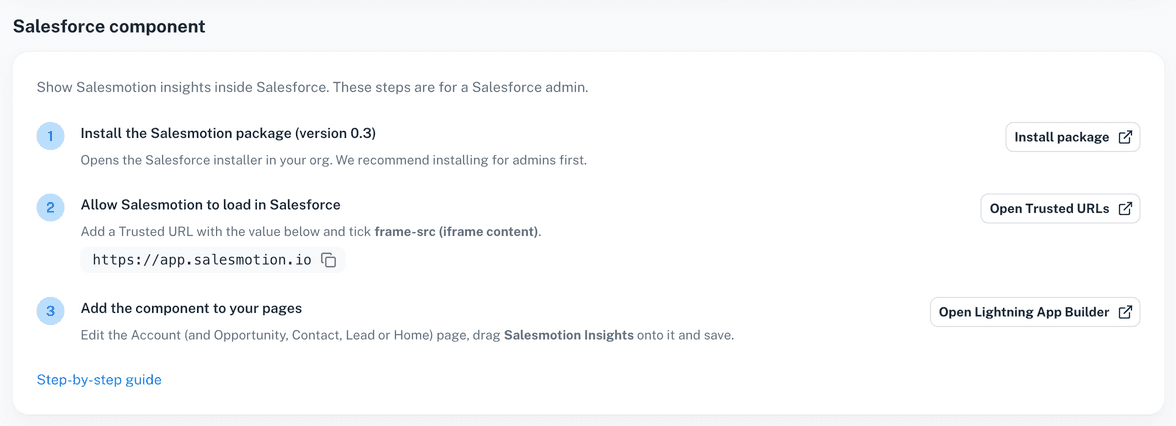
Salesmotion adds to Salesforce. It never takes anything away.
Only Salesmotion admins connect Salesforce and change its settings. Other users see the settings read-only.
The sync writes only the fields you map. Records are created only when someone uses Add to Salesforce, or when an admin turns on automatic adding.
Removing imported accounts from Salesmotion is a separate switch, off by default. It only ever removes accounts imported from Salesforce, never accounts your team added.
Admins decide whether reps may add contacts, accounts or both, and what happens when a contact already exists.
All reads and writes run through a named Salesforce user, so your admin controls its permissions and sees its activity in the audit log.
Three steps, no developer needed.
In Salesmotion, open Settings, then Integrations, and connect as your Salesforce integration user.
Connecting SalesforceInstall Salesmotion Insights from the link in Salesmotion's settings and add the component to your record pages.
Package setupChoose which fields sync in which direction, and which Salesforce Accounts Salesmotion tracks.
Importing accountsCommon questions about Salesmotion and Salesforce.
Yes. It has two parts: the Salesmotion Insights managed package, which adds the Lightning component to your pages, and an API connection through a dedicated integration user that syncs accounts, owners and fields. See Package setup and configuration.
Account, Opportunity, Contact and Lead record pages, and the Home page, where the component shows the Salesmotion signal feed. You place the component in the Lightning App Builder.
Salesmotion never deletes anything in Salesforce. It writes only the fields you map. It creates records only when someone uses Add to Salesforce, or when an admin turns on automatic adding of new accounts.
You choose per field: Salesmotion to Salesforce, or Salesforce to Salesmotion. Custom fields work in both directions, and account owners sync from Salesforce, matched by email.
Yes. An admin chooses the Accounts owned by synced owners, or the Accounts in a list view, a report or a checkbox field, or imports specific Accounts once. Removing imported accounts again is off by default. See Importing accounts from your CRM.
Every 12 hours, and any time an admin clicks Sync. The sync log on the Salesforce settings page lists every run and what changed.
Yes. An admin picks a primary CRM, which is used for Add to CRM, Quick Links and importing accounts. The other CRM still matches accounts and syncs fields. See Salesmotion + HubSpot.
Using HubSpot too? See Salesmotion + HubSpot and all integrations.
Book a demo and see Salesmotion inside Salesforce on your own accounts.
