
The Contact fields section decides what Add to CRM writes for each contact. Each row maps one Salesmotion field to a field on a CRM object.
You'll find it on the Salesforce Settings and HubSpot Settings pages (Settings → Integrations → Salesforce or HubSpot). Admins can edit it; other users see it read-only.
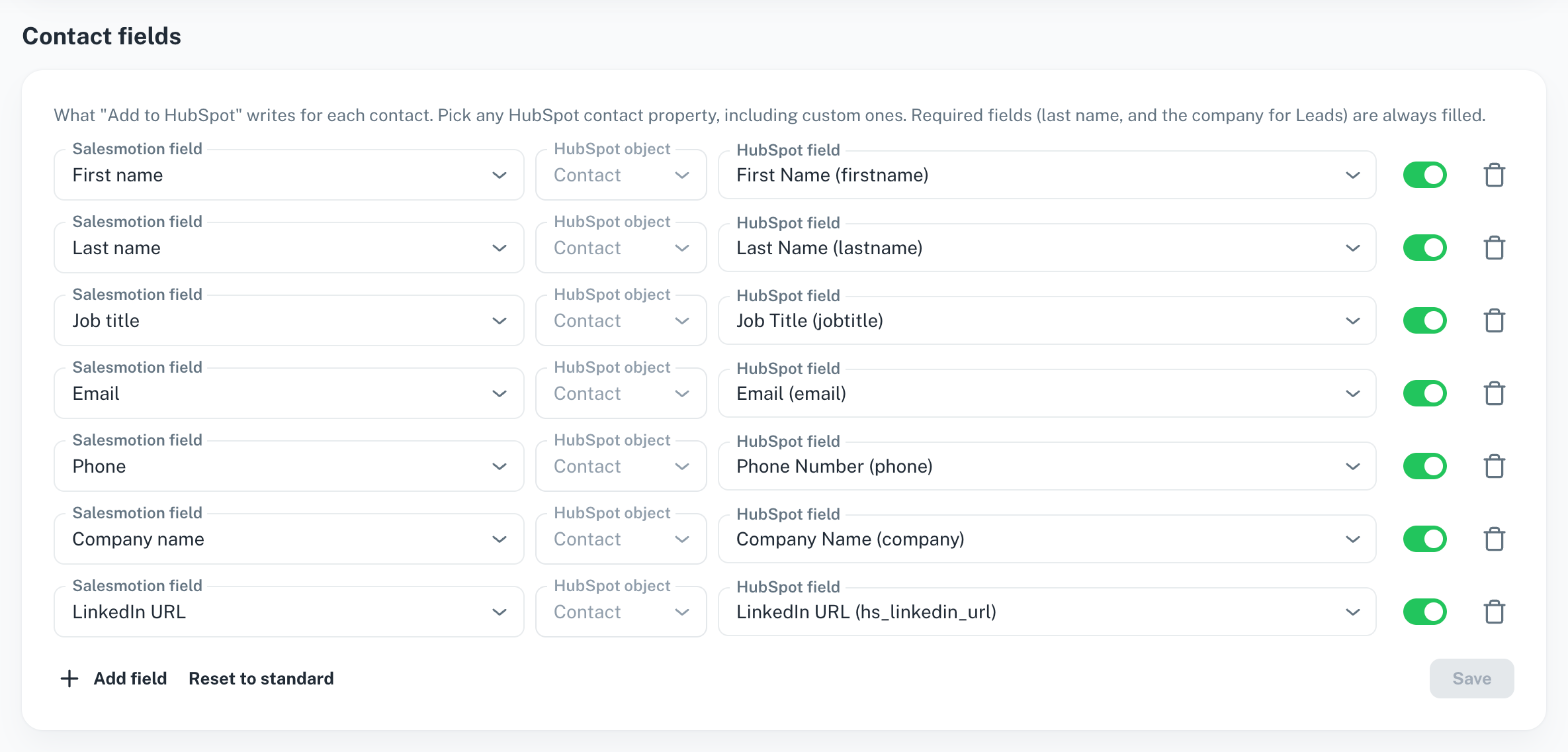 The Contact fields section on the HubSpot Settings page.
Standard mapping
Until you save your own mapping, Salesmotion uses these fields:
| Salesmotion field | Salesforce (Contact and Lead) | HubSpot (Contact) |
|---|---|---|
| First name | First Name | First name |
| Last name | Last Name | Last name |
| Job title | Title | Job title |
| Phone | Phone | Phone |
| Company name | Not mapped (a Lead's Company is always filled) | Company name |
| LinkedIn URL | Not mapped (goes into Description on new records) | LinkedIn URL |
Salesforce has no standard LinkedIn field, so new Salesforce records get the LinkedIn profile and a link back to Salesmotion in Description, unless you map those fields yourself.
Required fields are always filled, whatever the mapping says: the last name, and the company for Salesforce Leads.
Change the mapping
- For each row, pick the Salesmotion field, the object and the field:
- Salesforce: Contact or Lead. Contacts go under the linked Account; without one they become Leads, so map both objects.
- HubSpot: Contact. Pick any HubSpot contact property, including custom ones.
- Use the switch on a row to turn it on or off, or remove the row.
- Click Add field for more rows, for example Location, Previous company or Salesmotion link.
- Click Save.
To go back to the standard fields, click Reset to standard.
Salesmotion fields you can map:
| Person | First name, Last name, Full name, Job title, Contact role |
| Contact details | Email, Email status, Phone, LinkedIn URL, Sales Navigator URL, Location |
| Company and history | Company name, Previous title, Previous company, In current role since, In current company since |
| Salesmotion | Salesmotion link |
HubSpot custom fields
To list your custom HubSpot contact properties, Salesmotion needs HubSpot's permission to read contact properties. If you see "Showing the standard HubSpot fields. Reconnect HubSpot to map custom contact fields too.":
- If your HubSpot account uses app governance, a Super Admin enables all of Salesmotion's data permissions under Connected Apps → Approved apps → Salesmotion → Manage access.
- On the HubSpot Settings page, click Reconnect in that note under Contact fields, then approve the permissions in HubSpot.
The field picker then lists every contact property in your HubSpot.
Tip: HubSpot's standard LinkedIn property is called LinkedIn URL. If your team uses its own custom LinkedIn field, reconnect, then map LinkedIn URL to that field so the profile shows where your team looks for it.
Existing records
When a contact already exists in your CRM, the When the contact already exists setting decides whether the mapped fields are updated, only filled where empty, or left as they are. See Adding contacts and accounts to your CRM.