
With Add to CRM, your team adds the contacts and accounts they find in Salesmotion to Salesforce or HubSpot without retyping anything. If the record already exists in your CRM, Salesmotion links it instead of creating a duplicate.
Turn it on (admins)
Add to CRM is off by default. Nobody sees an Add to CRM button until an admin switches it on.
- Open Settings → Integrations and click Salesforce or HubSpot.
- In the Add to Salesforce (or Add to HubSpot) section, switch on what users may do:
- Let users add contacts to Salesforce (or HubSpot)
- Let users add accounts to Salesforce (or HubSpot)
Only admins can change these switches. Other users see them greyed out.
 The admin switches for Add to CRM.
The buttons only appear when the CRM is connected and the matching switch is on.
Which CRM is used
- One CRM connected: that one.
- Salesforce and HubSpot both connected: the Primary CRM. An admin picks it in the Primary CRM section near the top of the Salesforce or HubSpot Settings page. It is used for Add to CRM (contacts and accounts) and for Quick Links.
Add a contact
You'll find the button in three places:
- Contacts table on an account, next to the contact's name, including the contact signals list.
- Contact drawer, at the top and next to the email and phone.
- Prospector, on the contact view, under the name and title.
Click it to see what will happen, then click Add.
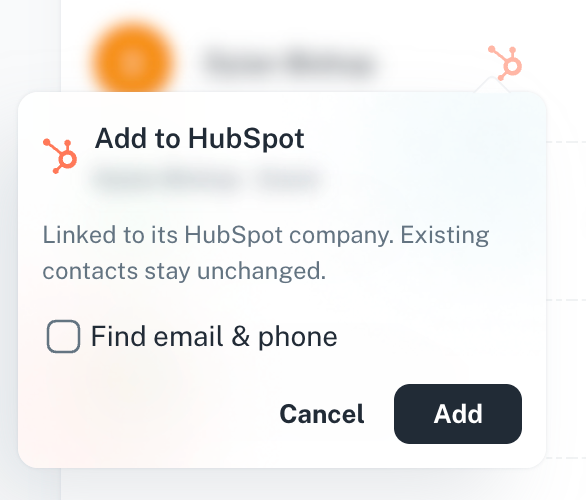 Adding a contact to HubSpot.
What gets created:
| CRM | Result |
|---|---|
| Salesforce | A Contact under the linked Salesforce Account. If the account isn't linked to a Salesforce Account, a Lead with the company name. |
| HubSpot | A contact, associated with the matching HubSpot company. |
The fields that are filled come from your contact field mapping.
If the contact already exists
Salesmotion looks for an existing record with the same email first: a Contact or an unconverted Lead in Salesforce, or a contact in HubSpot. If it finds one, it links that record instead of creating a new one.
What happens to the existing record depends on the When the contact already exists setting:
| Option | What it does |
|---|---|
| Update fields | Overwrites the mapped fields with Salesmotion's data. |
| Fill in empty fields | Keeps what is already in the CRM and only adds missing details. Salesforce only. |
| Don't change it | Leaves the CRM record as it is and only links it in Salesmotion. |
On an existing Salesforce record, Salesmotion only ever writes the fields in your mapping. It never moves a Contact to another Account.
Find email & phone
If you're allowed to look up emails and phone numbers, the popup shows Find email & phone. Tick it to run the same lookup as the Find email and Find phone buttons:
- The contact is added to your CRM straight away.
- The email and phone show as being looked up in Salesmotion.
- When they're found, usually within a few minutes, they're added to the contact in Salesmotion and to the CRM record.
Add an account
- Account header: click Add to Salesforce (or Add to HubSpot) next to Export.
- Quick Links: when the account isn't linked yet, click Add account next to Salesforce or HubSpot.
| CRM | Result |
|---|---|
| Salesforce | Links the Account with the same website, or creates it. Existing Accounts stay unchanged. |
| HubSpot | Links the company with the same domain, or creates it. Existing companies stay unchanged. |
The link is saved on the account, so Quick Links opens the CRM record from then on.
After adding
The button turns into a link to the record, for example View Contact in Salesforce, View Lead in Salesforce or View contact in HubSpot. Clicking it again never creates a second record.
Troubleshooting
| Problem | What to do |
|---|---|
| I don't see an Add to CRM button | Check that the CRM is connected and that an admin switched on adding contacts or accounts for it. |
| It says Salesforce instead of HubSpot (or the other way round) | Both CRMs are connected. An admin changes the Primary CRM near the top of the Salesforce or HubSpot Settings page. |
| Salesforce returns an error | Salesforce validation rules, required custom fields or duplicate rules can reject a record. The message comes from Salesforce. Ask your Salesforce admin, or map the required field in contact field mapping. |
| Fill in empty fields is greyed out for HubSpot | This option isn't available for HubSpot yet. Choose Update fields or Don't change it. |