
Adding accounts
There are two ways to add accounts to Salesmotion: searching by name or pasting company website URLs. You don't need to contact support or wait for an admin — any user can add accounts directly from the dashboard.
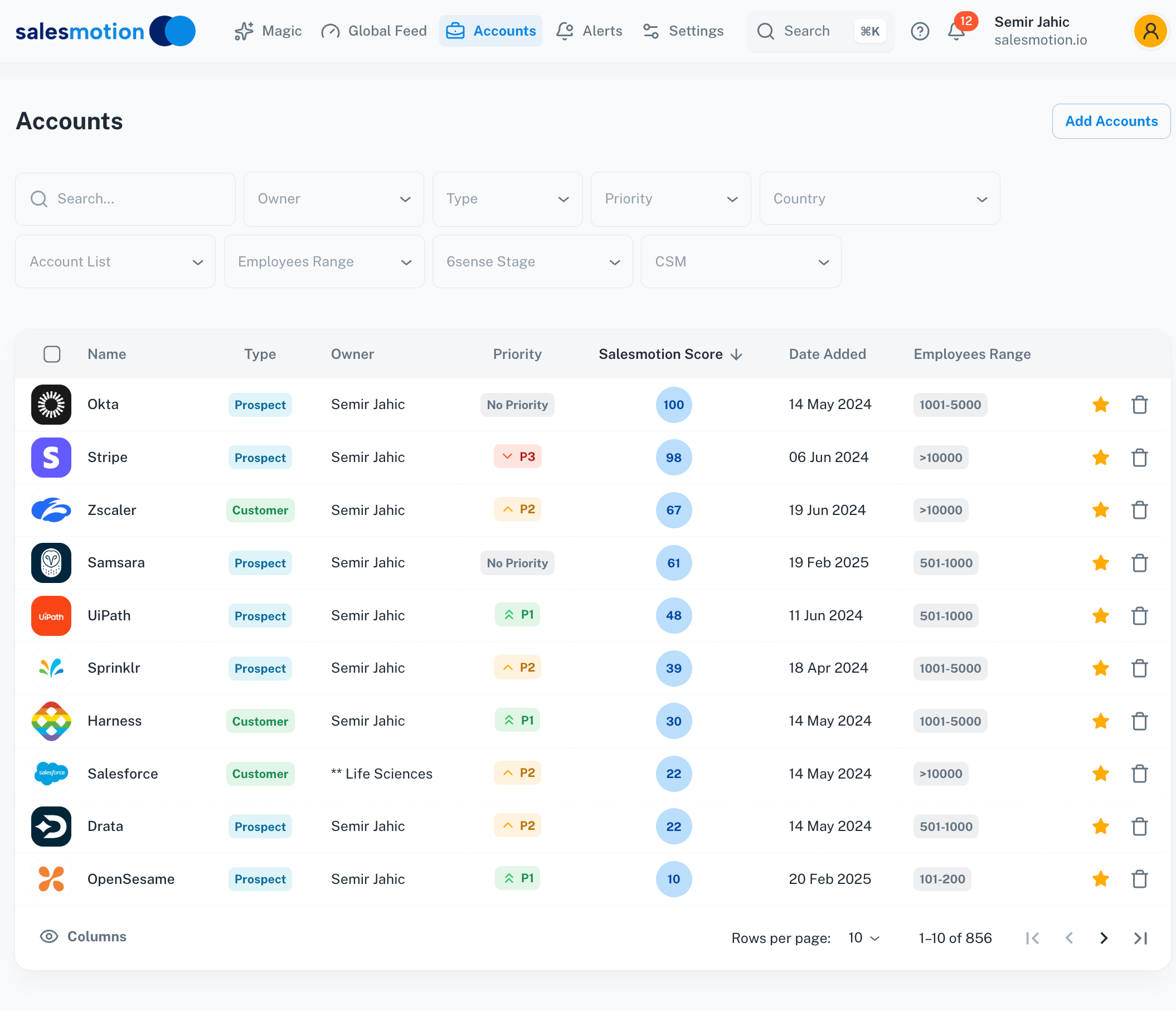 The Accounts dashboard with the Add Accounts button in the top right.
Search and add
- Click Accounts in the left sidebar.
- Click the Add Accounts button in the top right of the page.
- Type a company name or website URL into the search bar. Salesmotion will suggest matching companies.
- Click Add next to the company you want to track.
The account will appear in your dashboard and Salesmotion will begin scanning public sources for intelligence. This initial scan typically completes within an hour.
Paste website URLs
For adding multiple accounts at once, you can paste company website URLs directly:
- Click Add Accounts at the top of the Accounts page.
- Paste one or more company website URLs — one URL per line. You can copy these directly from a spreadsheet column. Make sure each URL is on its own line — Salesmotion uses line breaks to distinguish between companies.
- Click Add Accounts. Each line turns green when Salesmotion recognises the company.
This is the fastest way to load a new territory or account list. For example, if you need to research a specific company ahead of an RFI or meeting, you can add it yourself in seconds and have full intelligence ready within an hour — no need to wait for your admin.
Bulk imports (500+ accounts)
If you need to import a very large number of accounts (500+), contact support. We can process bulk uploads from a spreadsheet on your behalf to ensure everything loads cleanly and efficiently.
Tip: Configure your keywords, titles, and exclusions in Settings → Setup before adding accounts. This ensures the first scan is tuned to your priorities, so you get the most relevant intelligence from day one.
What happens after you add an account
When you add a new account, Salesmotion begins a one-time intensive scan across 1,000+ public data sources. During this process:
- The account may show a loading indicator while data is being collected and analysed.
- Expected processing time: Most accounts complete within an hour. Large batches (100+ accounts added at once) may take a few hours.
- You'll receive an email notification once the account is fully loaded and ready to explore.
- Once processing is complete, you'll see the full account detail page with Fast Facts, Summary, Signals, Contacts, and more.
If an account is stuck loading
If an account shows a loading state for more than a couple of hours:
- Try clicking the Refresh icon (circular arrow) at the top right of the account page to re-trigger the scan.
- If the account is still stuck after refreshing, reach out to support@salesmotion.io — we can trigger a manual refresh from our backend.
This is rare but can occasionally happen during large batch operations.
Organising your view with favourites
If you're tracking hundreds of accounts as a team, you'll want to focus on the ones most relevant to you. Use favourites to personalise your view without affecting your colleagues.
- Click the star icon next to any account to mark it as a favourite.
- Use the Favourites filter in the dashboard to show only your starred accounts.
- Favouriting is personal — only you see your favourites. It doesn't change anything for other users in your workspace.
This is the recommended way to "clean up" your dashboard. If you only want to see your territory, star your accounts and filter to favourites.
Deleting accounts
Important: Deleting an account removes it for all users in your organisation — not just your personal view. This is a permanent, workspace-wide action.
Before deleting, ask yourself: Do I want to stop tracking this company entirely, or do I just want to remove it from my personal view? If it's the latter, use favourites and filters instead.
How to delete
- Open the account you want to remove.
- Click the delete option (typically in the account toolbar or menu).
- Read the confirmation dialog carefully — it will warn you that this affects all users.
- Confirm the deletion.
Best practices for deletion
- Only admins should delete accounts. If you're a regular user who wants to tidy up your dashboard, use the favourites filter instead.
- Check with your team first. Another team member may be actively working an account you're about to delete.
- Deletions can be reversed — but only by support. If accounts are accidentally deleted, contact support as soon as possible. We can restore them from our backend, but this requires manual intervention and may take some time.
Restoring deleted accounts
If accounts were accidentally deleted (for example, someone was trying to clean up their view and didn't realise deletion is org-wide), contact support immediately. Provide:
- The names or domains of the deleted accounts (if you remember them).
- Approximately when the deletion happened.
We can restore accounts from our backend. After restoration, some accounts may need to re-process, which could take up to an hour.
Exporting your account list
If you need a full list of all tracked accounts with their Salesmotion Scores, contact support. We can export this as a spreadsheet for your records, renewal discussions, or territory planning.
Tips for managing accounts effectively
- Configure Setup first, add accounts second. Your keywords, job titles, and exclusions shape the intelligence Salesmotion gathers. Set these up before importing your account list for the best results.
- Use favourites, not deletion, for personal organisation. Favourites let you filter your view without affecting your team.
- Add accounts in batches. If you're loading a new territory, paste all URLs at once rather than adding one at a time. This is faster and more efficient.
- Keep your account list clean. Periodically review whether you're still tracking the right companies. Remove accounts you no longer sell into (coordinating with your team first) and add new prospects as your territory evolves.
- Set up alerts after adding accounts. Once your accounts are loaded and processed, configure Search Alerts to stay informed about the topics that matter to you.
Frequently asked questions
I deleted accounts by accident — can they be restored?
Yes. Contact support with the account names or domains and when the deletion happened. We can restore them from our backend, though it requires manual intervention.
How many accounts can I track?
Account limits depend on your plan. Individual plans support up to 100 accounts. Team and Enterprise plans support 1,000+ accounts. Check with your account manager if you're approaching your limit.
Why are some of my accounts missing?
If accounts have disappeared from your dashboard, another user in your organisation may have deleted them. Check with your team — and if needed, contact support for restoration.
Can I organise accounts into lists?
Yes. Salesmotion supports account lists for organising your tracked companies into groups (e.g. "Enterprise EMEA", "Renewals Q2"). You can filter the dashboard and Global Feed by list. Ask your admin about setting up lists for your team.
How long does it take for a new account to be fully processed?
Most accounts are fully processed within an hour of being added. If you've added a large batch (100+), allow a few hours. If an account is still loading after that, contact support.