
What is the Global Feed?
The Global Feed is your central hub for monitoring every signal across all of your tracked accounts in one place. Instead of clicking into individual accounts to check for updates, the Global Feed brings everything together — news articles, earnings reports, hiring activity, podcast mentions, funding rounds, and more — in a single, filterable stream.
Think of it as your daily intelligence briefing. Open it first thing in the morning, scan for what's changed, and decide where to focus your time.
Tailored to your business
The Global Feed isn't a generic news stream — it's highly personalised to your team's configuration. During setup, you teach Salesmotion what matters to your business: the keywords, job titles, industries, and signal types that indicate buying intent for your specific product. Once that's configured, Salesmotion looks for exactly those things across every account, every day, across all sources.
This means a cybersecurity company and a healthcare company using Salesmotion will see completely different intelligence — even if they're tracking some of the same accounts. The feed surfaces precisely what each sales team needs to know, in a single place, without the noise.
You also have the option to set up Search Alerts for specific topics, so you're automatically notified when something new appears — making the Global Feed the foundation for both real-time monitoring and proactive alerting.
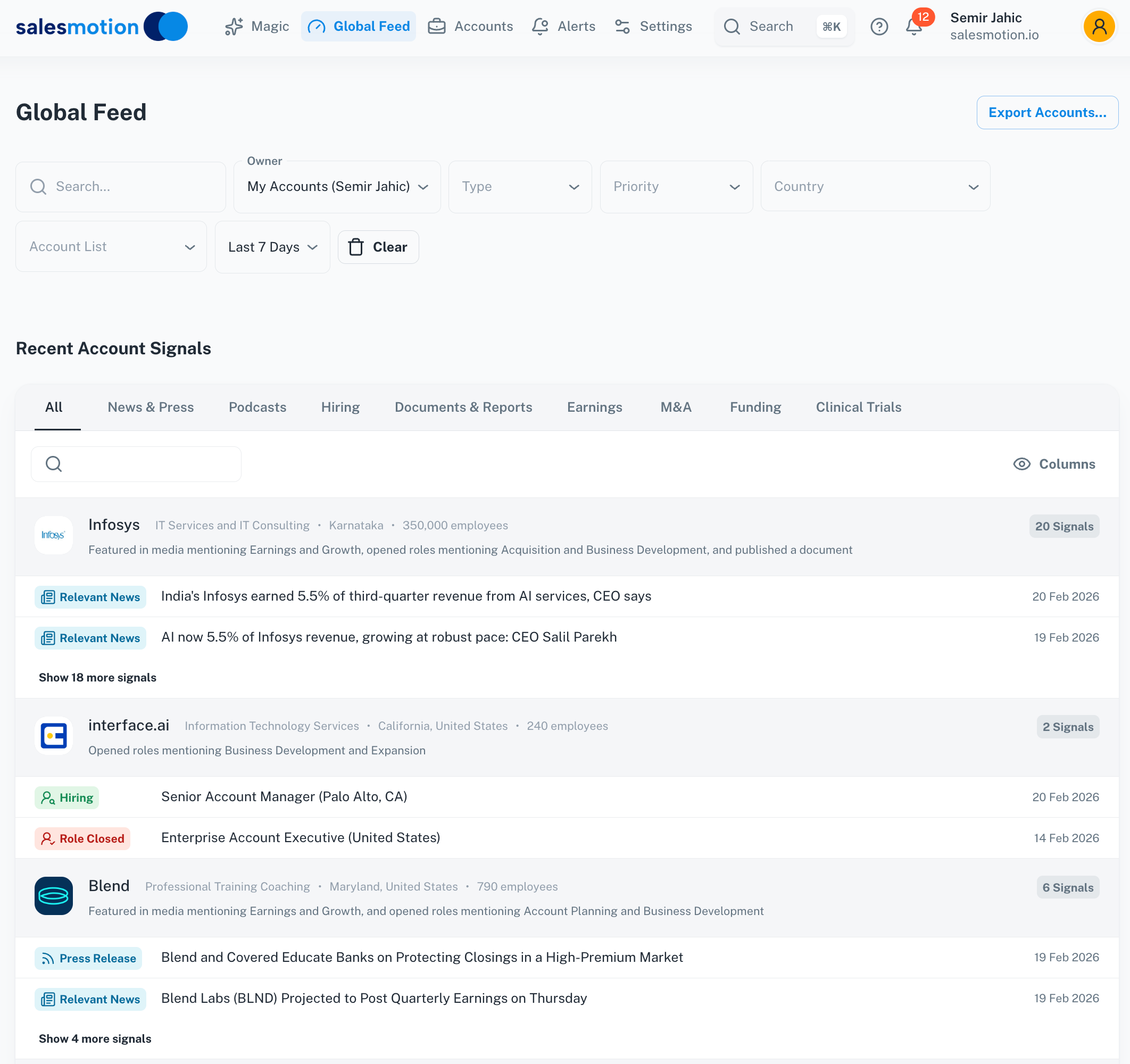 The Global Feed showing recent signals grouped by account — Infosys with 20 signals, interface.ai with 2, and Blend with 6.
Navigating the filter bar
At the top of the Global Feed you'll find a powerful filter bar that lets you slice the data in several ways:
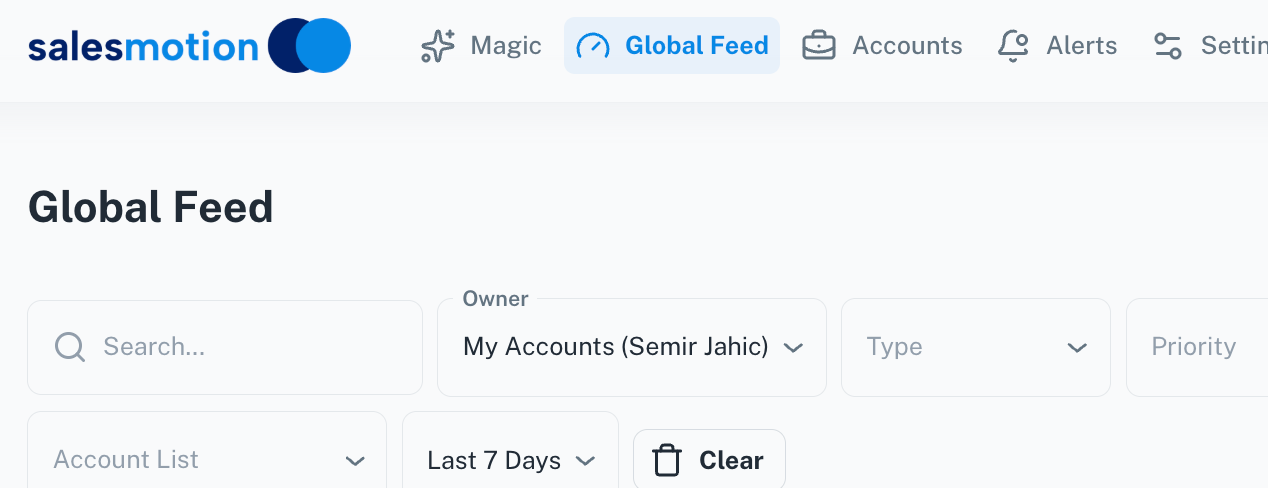 The filter bar gives you precise control over which signals appear in your feed.
Here's what each filter does:
- Search — Find signals mentioning a specific topic, company name, or keyword.
- Owner — View signals for accounts owned by a specific team member, or switch to "All Accounts" for a broader view.
- Type — Filter to a specific signal type (covered below).
- Priority — Focus on high-priority or low-priority signals based on your team's scoring configuration.
- Account List — If your admin has set up account lists (e.g. "Enterprise EMEA" or "Renewal Q2"), you can filter the feed to a specific list.
- Time range — Choose from preset ranges like "Last 7 Days", "Last 30 Days", or "Last 3 Months" to control how far back signals are shown.
- Clear — Reset all filters back to defaults in one click.
Signal type tabs
Below the filter bar, you'll see signal type tabs with count badges showing how many signals exist for each type within your selected time range:
- All — Every signal type combined.
- News & Press — Company announcements, media coverage, analyst reports.
- Podcasts — Podcast episodes featuring or mentioning the account.
- Hiring — New job postings and closed roles that indicate strategic direction.
- Documents & Reports — Published research, regulatory filings, whitepapers.
- Earnings — Quarterly and annual earnings calls, financial results, investor presentations.
- M&A — Mergers, acquisitions, and divestitures.
- Funding — Investment rounds and capital raises.
- Clinical Trials — Relevant for life sciences accounts tracking trial activity.
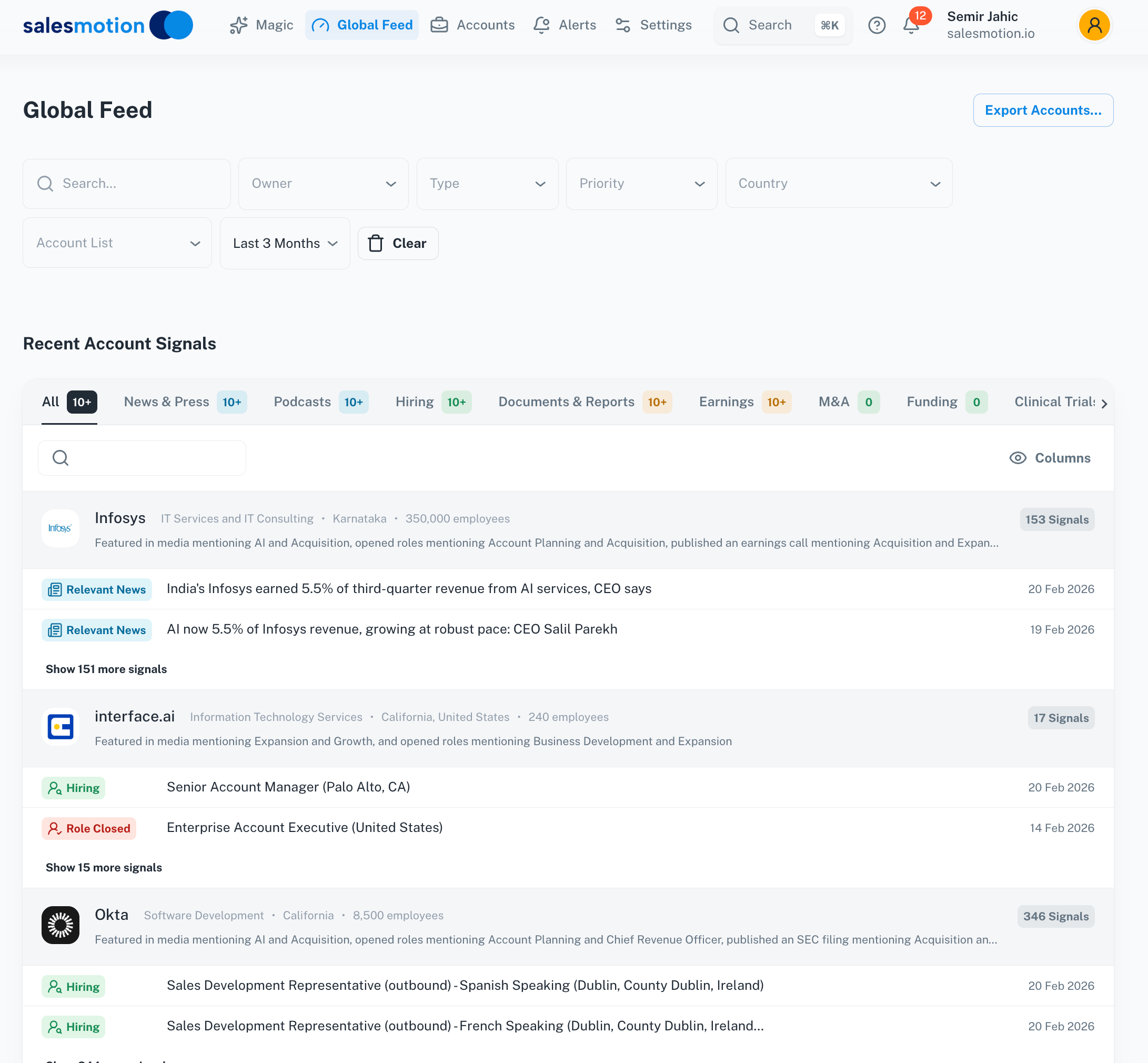 Switching to "Last 3 Months" reveals the full picture — count badges on each tab show signal volume by type, and individual accounts show much higher totals.
How signals are grouped
Signals in the Global Feed are grouped by account. Each account row displays the company name, the total signal count for your current filters, and a preview of the most recent signals. This grouping makes it easy to see at a glance which accounts are generating the most activity.
Accounts with more signals appear higher in the feed by default, helping you quickly identify which companies are in the news or experiencing significant change.
Opening signal details
Click on any signal to open the signal detail drawer on the right side of the screen. This drawer shows the full content of the signal, including:
- The headline and source
- A Smart Summary — an AI-generated analysis highlighting the key takeaways
- Links to the original source where available
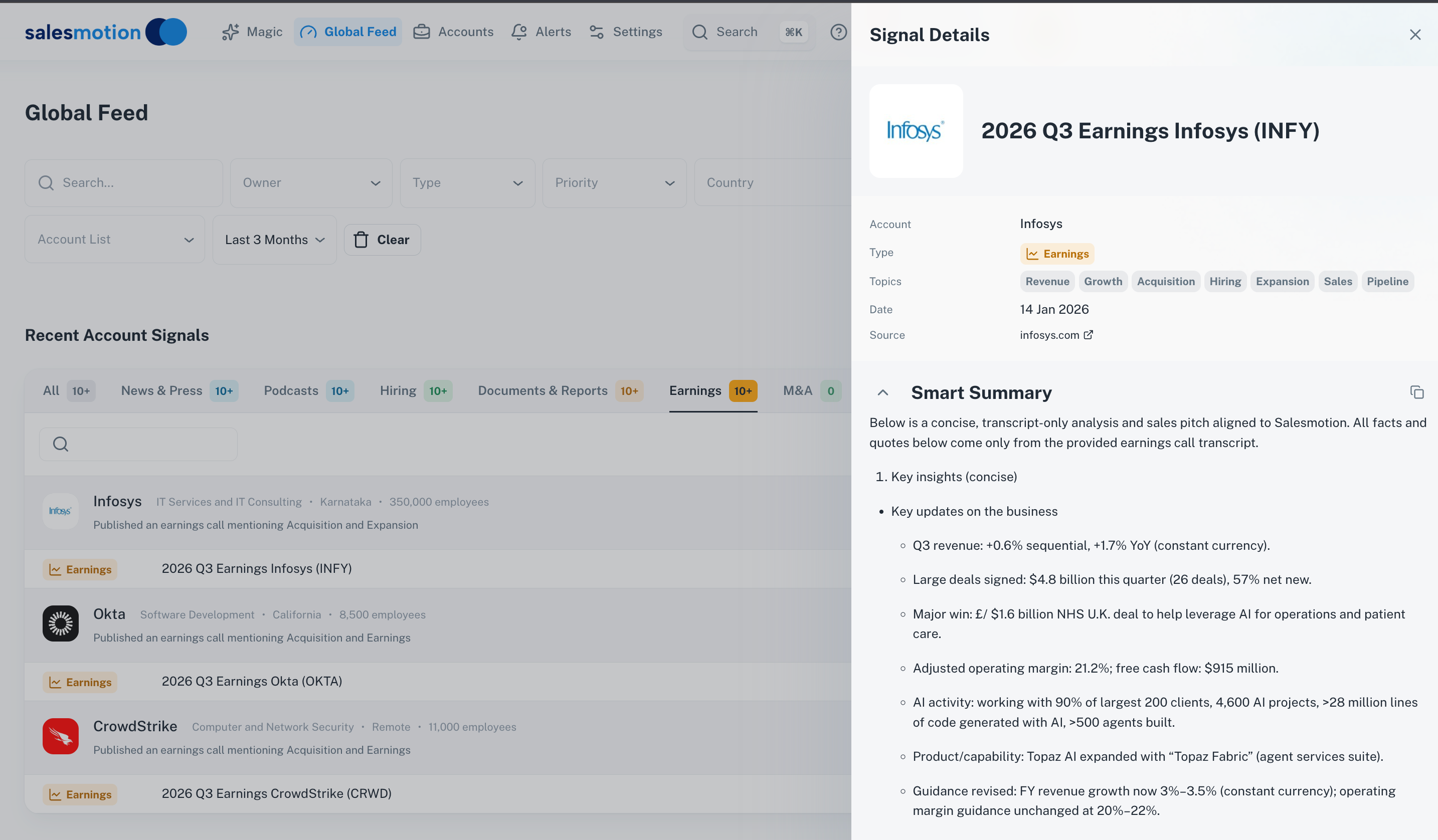 Clicking an earnings signal opens a detail drawer with an AI-generated Smart Summary — covering revenue figures, major deals, AI activity, and forward guidance.
The Smart Summary saves you from reading lengthy earnings transcripts or press releases. It extracts the information that matters most for sales conversations: financial performance, strategic priorities, and potential opportunities.
Tips for getting the most from the Global Feed
- Start your day here. Open the Global Feed each morning with "Last 7 Days" selected to see what's changed since you last checked. This is the fastest way to stay on top of your accounts.
- Use the time range to spot trends. Switch between "Last 7 Days" and "Last 3 Months" to compare recent activity against the longer-term picture. An account that's been quiet for months but suddenly has a burst of signals is worth investigating.
- Filter by signal type to focus. If you're preparing for an earnings-related conversation, filter to Earnings. If you want to understand an account's strategic direction, try Hiring or Documents & Reports.
- Use search for specific topics. If you're tracking a theme across your book of business — like "AI adoption" or "cost reduction" — use the search bar to surface relevant signals across all accounts.
- Combine filters for precision. You can use multiple filters simultaneously. For example, filter to "My Accounts" + "Earnings" + "Last 30 Days" to see all recent financial results for your territory.
- Share insights with your team. When you spot a significant signal, share it in your team channel or CRM notes. The Smart Summary makes it easy to pass along key points quickly.
Frequently asked questions
How often is the Global Feed updated?
The Global Feed updates continuously as Salesmotion detects new signals from its 1,000+ data sources. When you open the feed, you're always seeing the latest available information.
Can I see signals for accounts I don't own?
Yes. Use the Owner filter to switch from "My Accounts" to a specific colleague or "All Accounts" to see signals across the entire workspace. This is useful for managers reviewing team activity or for spotting trends in accounts outside your direct territory.
Why do some accounts show many more signals than others?
Signal volume depends on the account's public activity. Larger, publicly traded companies tend to generate more signals because they have more news coverage, earnings filings, and hiring activity. A lower signal count doesn't mean an account is less important — it simply means there's less publicly available data. Combine the Global Feed with your own research and CRM data for a complete picture.