
Salesmotion for HubSpot puts your account intelligence on the HubSpot company records your team already works in. Once it's connected, every matched company gets:
- A Salesmotion tab with the score, signal counts, the latest buying signals, Fast Facts, What You Need to Know, and why now / why change / why you with Salesmotion's point of view.
- 35 native company properties in a Salesmotion property group. You can use them in lists, filters, reports, workflows and email personalization tokens like any other HubSpot field.
- Three ready-made lists: hot accounts, new signals this week, and people changes in the last six months.
The sync is one-way, from Salesmotion to HubSpot. It only writes its own Salesmotion fields. It never creates or deletes HubSpot companies, and it never overwrites a value your team typed.
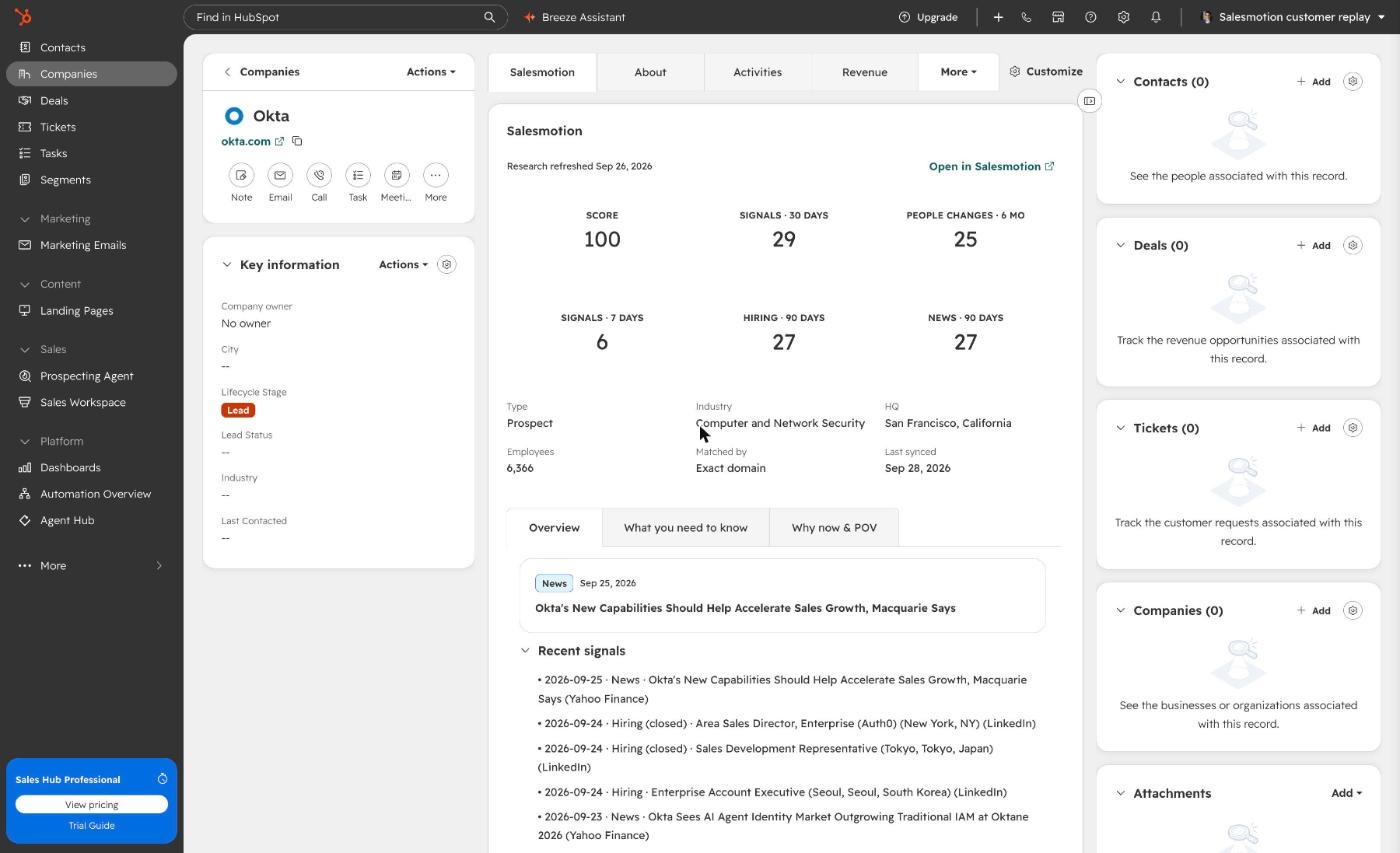 The Salesmotion tab on a HubSpot company record.
Before you start
Plan requirement: The HubSpot integration is part of the Enterprise plan. On other plans, contact us and we can enable it for your workspace.
You'll need two things:
- In HubSpot: a Super Admin, or a user with the App Marketplace Access permission, to install the app.
- In Salesmotion: a workspace admin, to create an API key.
Setup takes about five minutes. The first sync usually finishes a few minutes after that.
Step 1: Create a Salesmotion API key
- In Salesmotion, open Settings → API.
- Click Create API Key and name it HubSpot.
- Tick Org-owned service-account key. The key then belongs to your workspace rather than to you, so the sync keeps working if you ever leave.
- Click Create and copy the key.
Keep the key handy for step 3. The connector only uses it to read your accounts and signals, and nothing is written back to Salesmotion.
Step 2: Install the app in HubSpot
- Open hubspot-connector.vercel.app and click Install in HubSpot.
- If you have access to several HubSpot accounts, pick the one you want to connect.
- Review the permissions and click Connect app.
The app asks for these permissions, and only uses them for this:
| Permission | What it's used for |
|---|---|
| Read and write companies | Match companies and write the Salesmotion fields |
| Read and write company properties | Create the Salesmotion property group |
| Read and write lists | Create the three ready-made lists |
HubSpot then sends you back to the Salesmotion setup page.
Step 3: Paste your API key
On the setup page, paste the key from step 1 and click Save and start syncing. Salesmotion then:
- Checks the key.
- Creates the Salesmotion property group and the three lists in your HubSpot.
- Starts the first full sync.
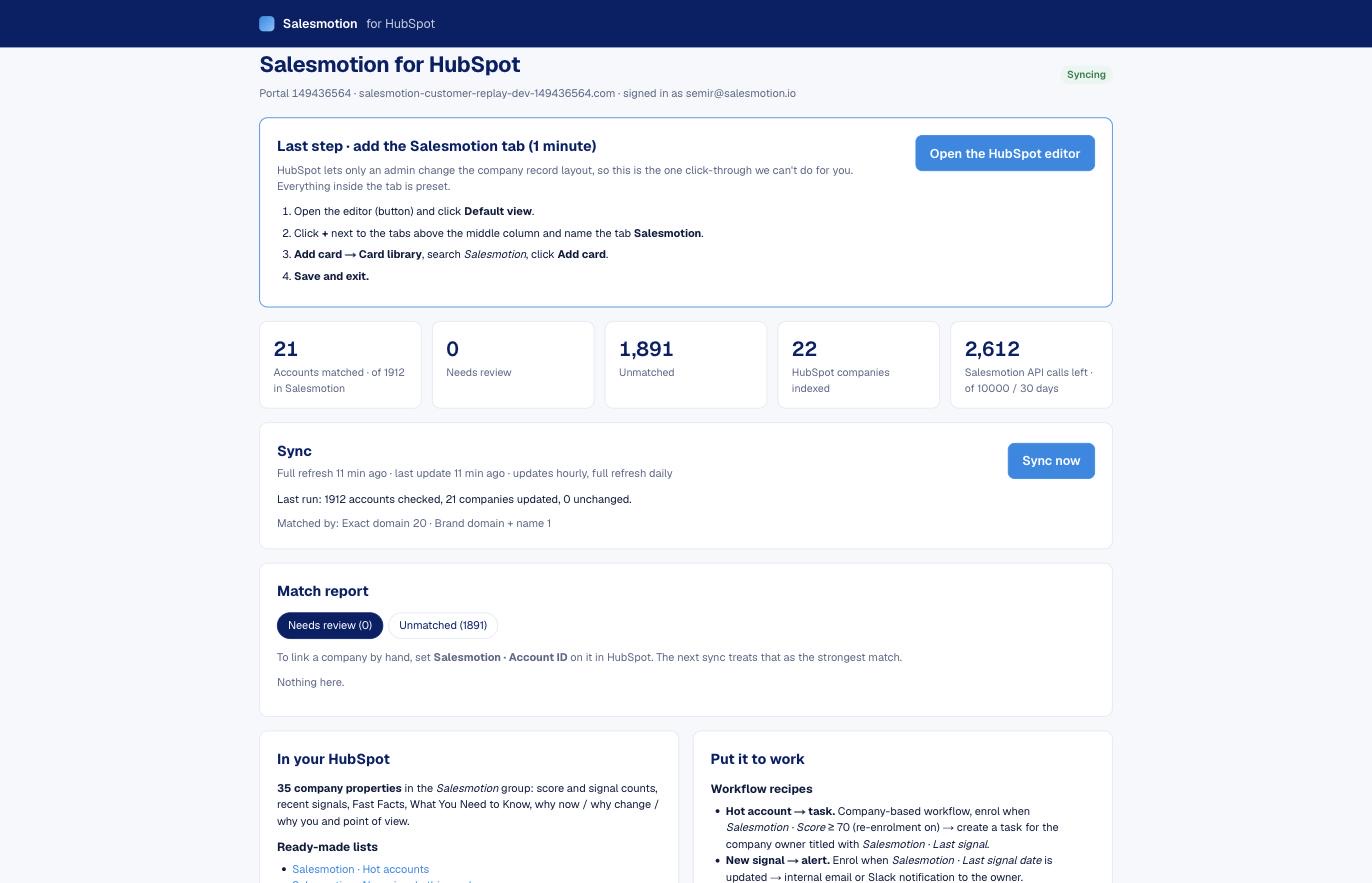 The setup page after connecting. It refreshes itself while the first sync runs.
The numbers at the top mean:
- Accounts matched: your Salesmotion accounts that were found in HubSpot and now carry Salesmotion data.
- Needs review: possible matches the connector wasn't confident enough to apply on its own. See How matching works below.
- Unmatched: Salesmotion accounts with no company in your HubSpot. This is normal if you track accounts in Salesmotion that aren't in your CRM yet. The connector never creates companies for them.
- Salesmotion API calls left: only shown if your workspace has an API limit.
Step 4: Add the Salesmotion tab
HubSpot only lets an admin change the company record layout, so this is the one step we can't do for you. It takes about a minute, and everything inside the tab is preset.
- On the setup page, click Open the HubSpot editor. You can also go to Settings → Objects → Companies → Record customization in HubSpot.
- Click Default view, or the team view you want to add it to.
- Click + next to the tabs above the middle column and name the new tab Salesmotion.
- Click Add card, switch to Card library, search for Salesmotion, and click Add card.
- Click Save and exit.
Open any matched company and click the Salesmotion tab.
What's on the Salesmotion tab
- Header: when Salesmotion last refreshed its research, and a link to open the account in Salesmotion.
- Numbers: the Salesmotion score, signals in the last 7 and 30 days, hiring and news signals in the last 90 days, and people changes in the last six months.
- Facts: account type, industry, HQ, employees, how the company was matched, and when it was last synced.
- Overview: the latest signal, the five most recent signals, the company description, and LinkedIn, Sales Navigator and Crunchbase links.
- What you need to know: key insights, opportunities, challenges, people updates, top news and talking points.
- Why now & POV: why now, why change, why you, and Salesmotion's point of view.
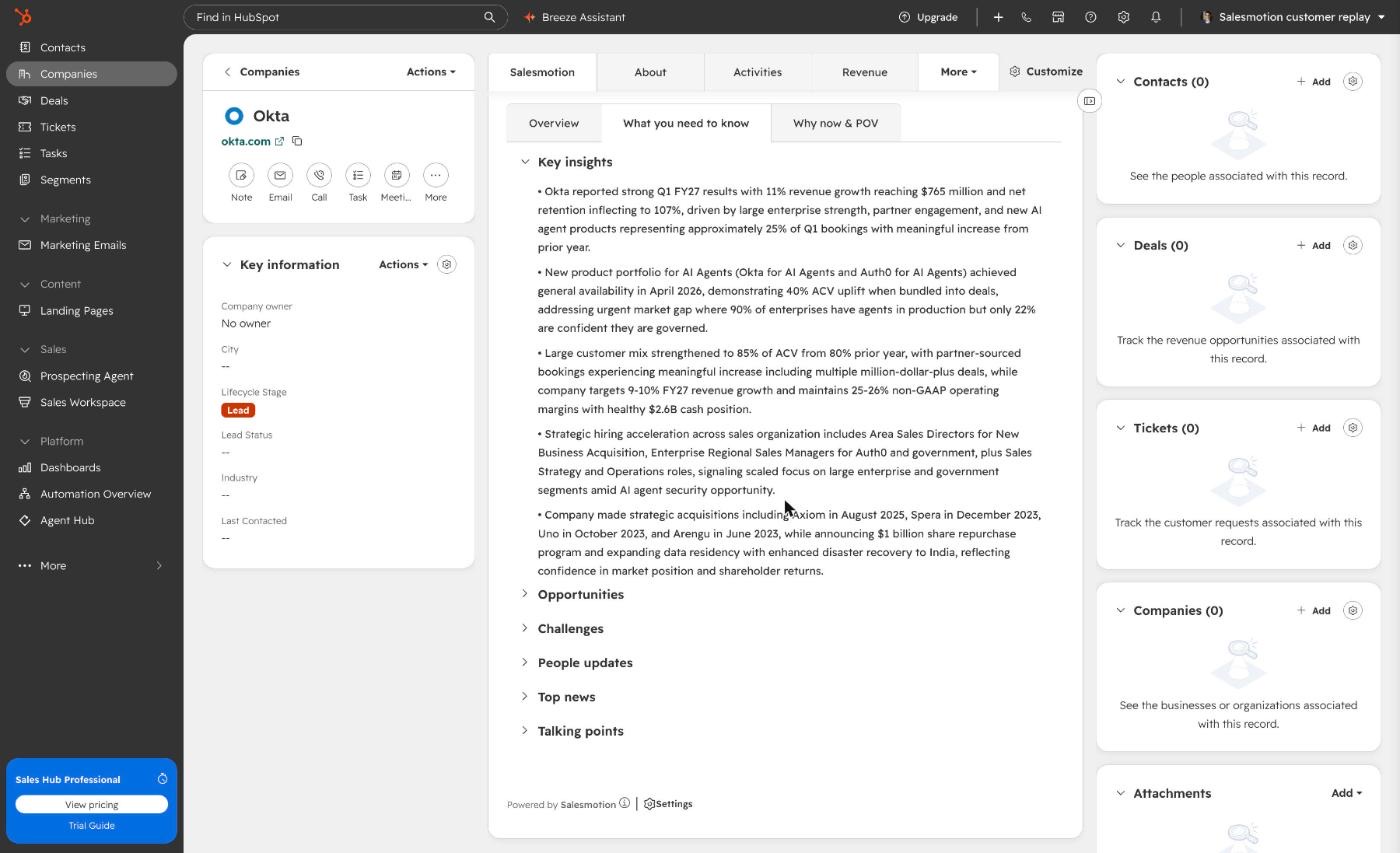 What you need to know, one click away on the record.
Companies without a Salesmotion account show Not tracked in Salesmotion yet with a note on how to link one.
How matching works
The connector matches each Salesmotion account to a HubSpot company using the strongest evidence it can find, in this order:
| Match | Example |
|---|---|
| Existing link, where the company already has Salesmotion · Account ID set | Set by an earlier sync or by an admin |
| HubSpot URL saved on the account in Salesmotion | A direct link to the record |
| Exact domain, including HubSpot's additional domains and the website field | okta.com = www.okta.com |
| Root domain | cropscience.bayer.com → bayer.com |
| LinkedIn company page | The same linkedin.com/company/... page |
| Same brand on another country domain, only when the names also match | genpact.co.uk "Genpact Ltd" → genpact.com "Genpact" |
Look-alike names on their own are never matched automatically. They show up under Needs review on the setup page with the suggested HubSpot company. Duplicates are handled too: if several HubSpot companies share a domain, the connector picks the one with an owner, then the one with deals, then the most recently updated one, and flags the rest for review.
Fix a match by hand
To link a company yourself, open it in HubSpot and set Salesmotion · Account ID to the account's ID. That's the number at the end of the account's URL in Salesmotion, for example app.salesmotion.io/dashboard/accounts/3337. The connector treats this as the strongest possible match and picks it up within the hour. To unlink a wrong match, clear the field.
How it stays up to date
You don't need to do anything once it's connected:
- Every hour, the connector checks for accounts that changed in Salesmotion, new signals, and companies that changed in HubSpot, and updates those.
- Every day, it runs a full refresh of every account.
- It only writes a field when its value actually changed, so your workflows don't re-fire on every sync and the property history stays clean.
To sync straight away, for example after adding accounts in Salesmotion, click Sync now on the setup page.
Put it to work
Because these are ordinary HubSpot properties, you can use them anywhere:
- Lists: start with the three ready-made lists (Salesmotion · Hot accounts, New signals this week and People changes (6 months)), or build your own on any Salesmotion field.
- Workflows (HubSpot Professional and up):
- When Salesmotion · Score goes above 70, create a task for the company owner.
- When Salesmotion · Last signal date changes, send the owner an internal notification.
- When Salesmotion · People changes · 6 months goes up, add a task to map the new stakeholders.
- Email and sequences: insert Salesmotion · Talking points or Why now as a personalization token.
- Reports and views: filter or sort companies by score or signal activity.
All Salesmotion fields
| Group | Fields |
|---|---|
| Links and identity | Open in Salesmotion, Account ID, LinkedIn URL, Sales Navigator URL, Crunchbase URL, Account type, Research refreshed, Last synced, Match method, Match confidence |
| Score and activity | Score, Signals (7, 30 and 90 days), Hiring signals (90 days), News signals (90 days), Last signal, Last signal type, Last signal date, Recent signals, People changes (6 months) |
| Fast Facts | Company description, Industry, HQ location, Employees |
| What You Need to Know | Key insights, Opportunities, Challenges, People updates, Top news, Talking points |
| Strategy | Why now, Why change, Why you, Point of view |
Every field is labelled Salesmotion · … so it's easy to find in HubSpot's property pickers.
Settings
On the setup page you can:
- Fill empty HubSpot fields. Off by default. When it's on, the connector also fills HubSpot's own LinkedIn company page, Description and Number of employees, but only on companies where they're empty. It never overwrites them.
- Keep API calls in reserve. If your workspace has an API limit, the sync pauses before it uses up the calls your other tools need.
- Replace the API key, for example to switch to an org-owned service-account key.
Disconnect
- To stop syncing: click Disconnect on the setup page. The stored credentials are deleted, and values already in HubSpot stay where they are.
- To remove the app completely: also uninstall it in HubSpot under Settings → Integrations → Connected apps.
FAQ
Does it change anything in Salesmotion?
No. The connector only reads from Salesmotion.
Will it create companies or overwrite my team's data?
No. It only writes its own Salesmotion · … fields on companies that already exist. The optional Fill empty HubSpot fields setting only fills fields that are blank.
Which plans does it work with?
On the Salesmotion side, the HubSpot integration is part of the Enterprise plan. Contact us if you're on another plan and we can enable it for your workspace. You also need an admin who can create an API key.
On the HubSpot side, it works with any plan. Workflows need HubSpot Professional or Enterprise, but the fields, lists and tab work on every plan.
How do I get back to the setup page?
For security, the setup page opens right after you sign in through HubSpot. To come back, click Install in HubSpot again. HubSpot recognises that the app is already installed, and your key and settings are kept.
Some of my accounts show as unmatched. Is something wrong?
Usually not. Unmatched means there's no HubSpot company with that domain, root domain or LinkedIn page. Either add the company in HubSpot (it's picked up within the hour) or link it by hand with Salesmotion · Account ID.
Does it use my Salesmotion API quota?
Yes, lightly. An hourly update usually takes a few calls, and a full daily refresh takes about one call per 100 accounts plus one per 100 recent signals.
Is my data safe?
The Salesmotion API key and the HubSpot access tokens are stored encrypted, and are only used to read from Salesmotion and write the Salesmotion fields. Disconnecting deletes them.