
Short on time? The five-minute quickstart gets one person connected and shows an admin how to roll it out to the team. This page is the full reference.
What is MCP?
The Model Context Protocol (MCP) is an open standard that lets AI assistants connect directly to external data sources. Instead of copy-pasting data into your AI tool, MCP gives the assistant live access to your Salesmotion intelligence — accounts, signals, contacts, and company research — so it can pull exactly what it needs, when it needs it.
Salesmotion's MCP server is a hosted service at mcp.salesmotion.io. There's nothing to install or run — just connect your AI tool and start using it.
What your AI assistant can do
Once connected, your AI assistant has access to 19 tools:
| Tool | What it does |
|---|---|
| run_skill | Run any of the twelve guided sales workflows by name — see Using Salesmotion skills in Claude |
| account_card | Interactive account card rendered inside Claude — see The Salesmotion account card |
| account_insights | Complete AI-generated account brief in one call — profile, SWOT, value pyramid, three whys, research, talking points. Resolves by name, domain, or ID. |
| list_accounts | Browse accounts by score, priority, owner, or recent signal activity |
| search_accounts | Search accounts by company name, domain, or keyword |
| get_account | Full account record with all AI intelligence sections |
| get_company | Look up any company by domain, LinkedIn URL, or stock symbol |
| get_company_news | Full news archive for a company, beyond the signal feed; full article text on request |
| get_company_jobs | Job openings with location, seniority, and function; full descriptions on request |
| get_company_earnings_calls | Earnings call history with AI analysis; transcripts on request |
| get_company_filings | SEC filings (10-K, 10-Q, 8-K, DEF 14A) with public links |
| get_contacts | Ranked contacts at an account with role change info |
| get_contact | Full contact detail with person insights, talking points, and intro paths |
| search_contacts | Search contacts by name or title across all accounts |
| get_signals | Buying signals — earnings calls, news, hiring, M&A, funding, SEC filings, clinical trials, podcasts |
| get_signal | Full signal content — transcript, AI analysis, audio, documents |
| get_signal_counts | Quick signal count breakdown by type |
| get_usage | API quota and request breakdown |
| submit_feedback | Report data issues or suggest improvements |
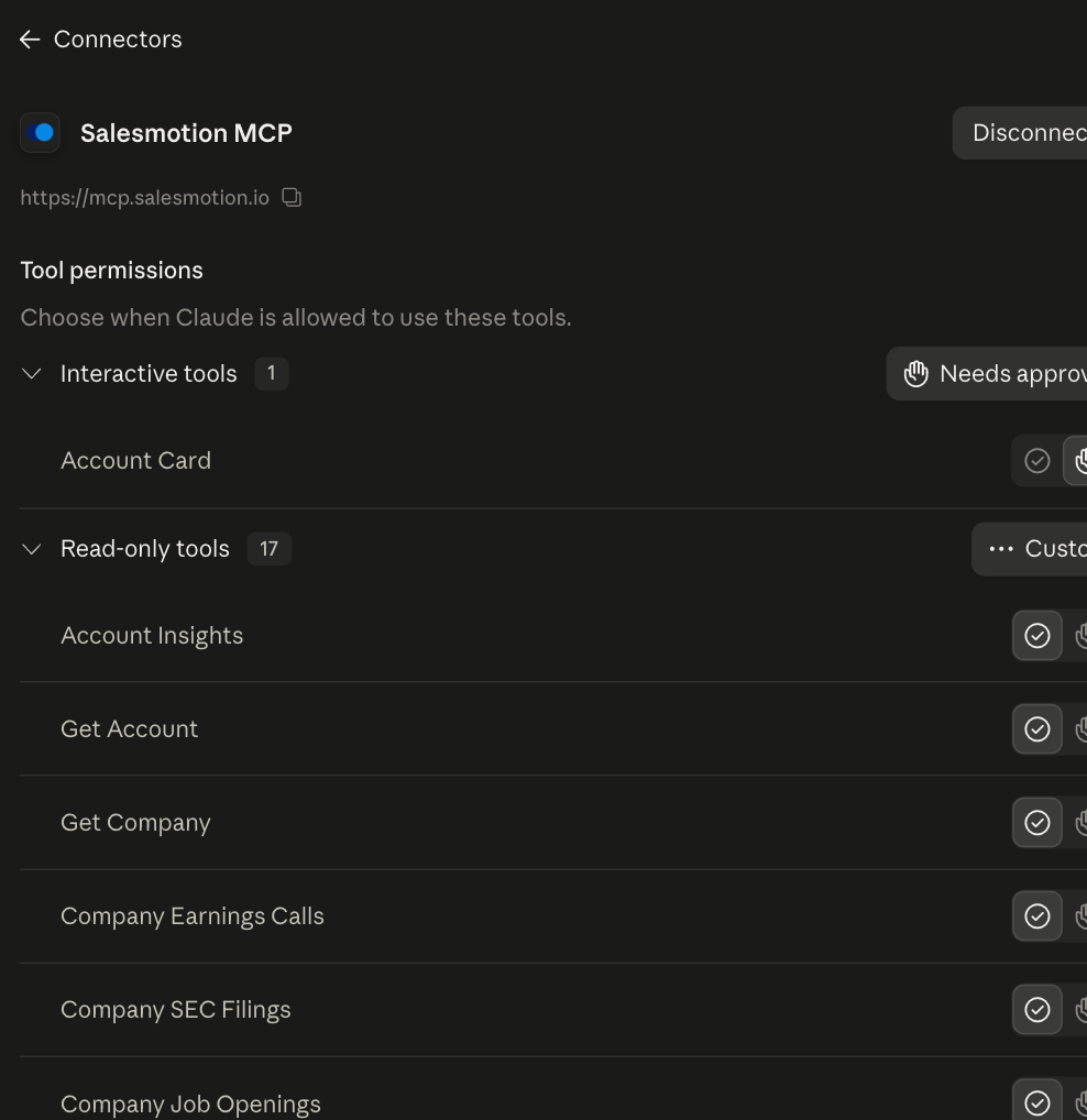
In claude.ai you can see and control these under Settings → Connectors → Salesmotion MCP. The account card is listed as an interactive tool that needs approval the first time; the other seventeen are read-only.
You rarely call tools by name. Describe what you want — "account plan for Honeywell", "who decides at Bayer", "show me Hitachi" — and Claude picks the right tool or skill.
The server also includes twelve guided workflows called skills, which chain the tools into complete sales motions: account brief, account research, account plan, value pyramid, MEDDIC qualification, stakeholder map, meeting prep, signal-to-outreach, pipeline signals, territory review, earnings analysis, and hiring analysis. They are documented in Using Salesmotion skills in Claude.
Setup: Claude.ai
- Open claude.ai and go to Settings
- Click Connectors in the left sidebar
- Click Add custom connector
- Set the name to
Salesmotion - Set the URL to
https://mcp.salesmotion.io - Click Connect
- A Salesmotion window opens. Click Sign in with Salesmotion, log in with your Salesmotion account, and click Allow and connect. Prefer a key? Open Use an API key instead and paste one; it is validated before Claude connects.
On Claude Team or Enterprise, an admin adds the connector once and each member signs in with their own account. See Sign in with Salesmotion.
That's it. Claude now has access to your Salesmotion data. Try asking it to "Research Acme Corp using Salesmotion" or "Show me accounts with recent earnings calls."
Setup: Claude Desktop
Add this to your Claude Desktop MCP configuration file:
{
  "mcpServers": {
    "salesmotion": {
      "type": "url",
      "url": "https://mcp.salesmotion.io",
      "headers": {
        "Authorization": "Bearer YOUR_API_KEY"
      }
    }
  }
}
Replace YOUR_API_KEY with your Salesmotion API key. Restart Claude Desktop to activate the connection.
Setup: Claude Code (CLI)
Add the same configuration to your ~/.claude.json file under the mcpServers key:
{
  "mcpServers": {
    "salesmotion": {
      "type": "url",
      "url": "https://mcp.salesmotion.io",
      "headers": {
        "Authorization": "Bearer YOUR_API_KEY"
      }
    }
  }
}
Setup: Microsoft Copilot and other MCP clients
Point your MCP client at:
- MCP endpoint:
https://mcp.salesmotion.io - Authentication: Bearer token in the
Authorizationheader - OAuth discovery:
https://mcp.salesmotion.io/.well-known/oauth-authorization-server
The server supports OAuth 2.1 with PKCE (S256), sign-in with a Salesmotion account, and dynamic client registration for clients that require it.
Getting your API key
You only need a key for clients configured with one, such as Claude Desktop or Claude Code config files. Create a personal key in the Salesmotion app under Settings > API. If you don't see the API section, API access may not be enabled for your organization: contact your account admin or email support@salesmotion.io.
Example conversations
Here are some things you can ask your AI assistant once connected:
-
"Account plan for [Company Name]" — runs the account plan skill
-
"Show me [Company Name]" — opens the interactive account card
-
"Draft an email to the CFO at [Company Name] about their last earnings call"
-
"What is [Company Name] hiring for?"
-
"Research [Company Name] — give me the full account brief with recent signals"
-
"Find all my accounts with earnings calls in the last 30 days"
-
"Who are the top contacts at [Company Name]? Any recent role changes?"
-
"Prepare me for a meeting with [Person Name] at [Company Name]"
-
"Show me hiring signals across my priority 1 accounts this month"
-
"Look up Apple by domain — what's their latest earnings call about?"
Troubleshooting
"Authentication failed" error
Your API key may be invalid or expired. Check that you're using the correct key from Settings > API in the Salesmotion app.
"Not found" error
Verify the ID is correct. Account IDs are numbers (e.g. 4798), contact IDs are strings (e.g. cnt_abc123).
"Rate limit exceeded" error
You've used all available API requests for this billing period. Ask the assistant to run get_usage to check when your quota resets.
Tools not showing up in Claude.ai, or only three prompts in the picker
Disconnect and reconnect the connector in Settings > Connectors. Claude.ai caches the tool list when it connects — reconnecting forces a refresh. If you connected before August 2026 you will not see the skills, the account card, or the company-intelligence tools until you do this.
Frequently asked questions
Is MCP access included in my plan?
MCP access uses the same API credentials and quota as the REST API. It's available on the Enterprise plan.
Is my data secure?
The MCP server doesn't store any data. Every request passes through to the Salesmotion API using your API key, and the response is returned directly to your AI assistant. The server is hosted on Vercel with TLS encryption.
Can I use MCP and the REST API at the same time?
Yes. They share the same API key and quota. The MCP server is a thin layer on top of the REST API — it provides the same data in a format AI assistants can work with directly.
Which AI tools support MCP?
Claude (claude.ai, Claude Desktop, Claude Code), Microsoft Copilot, and any tool that implements the Model Context Protocol. The ecosystem is growing — check with your AI tool vendor for MCP support.