
Once HubSpot is connected, Salesmotion gives you two cards for HubSpot company records:
- Salesmotion Signals, the full card, best placed on its own tab.
- Salesmotion Summary, a short version for the right sidebar.
Both read live from Salesmotion every time you open a company.
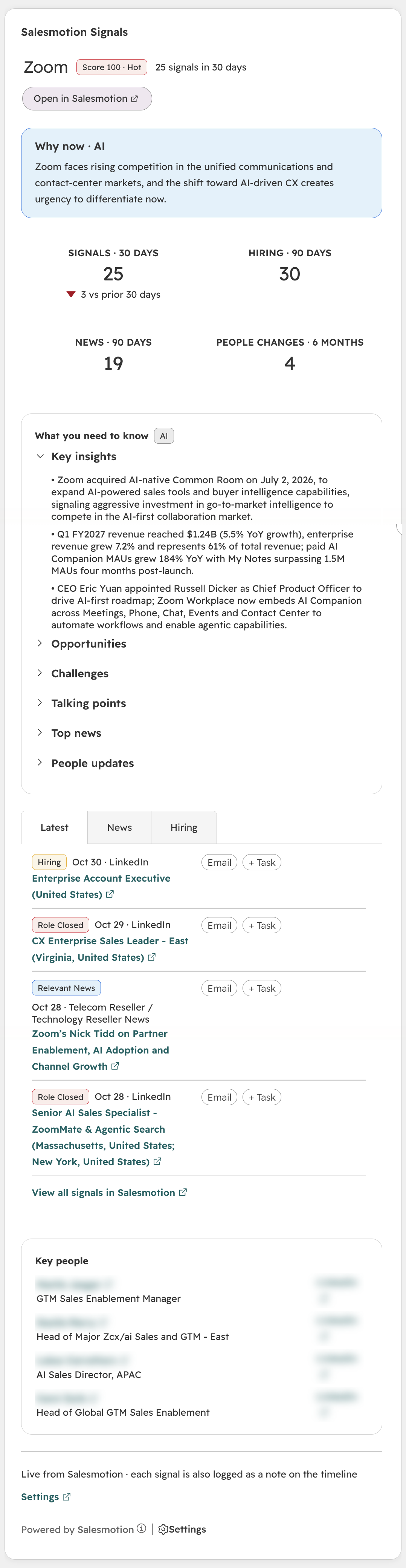 The Salesmotion Signals card on a company record.
What the card shows
From top to bottom:
- Header: the company, its Salesmotion score, how many signals it had in the last 30 days, and Open in Salesmotion.
- Why now · AI: a short summary of why this account is worth a conversation now.
- Statistics: signals in the last 30 days with the change against the 30 days before, hiring and news signals in the last 90 days, and people changes in the last six months.
- What you need to know: key insights, opportunities, challenges, talking points, top news and people updates, each in its own collapsible section.
- Signals: the latest signals in tabs: Latest, News, Hiring and Company events. Each signal has:
- Email, which opens HubSpot's email composer with a subject and text based on the signal.
- + Task, which creates a follow-up task on the company.
- View all signals in Salesmotion at the bottom of the list.
- Key people: the most relevant contacts at the account, with their title and LinkedIn profile.
Every signal is also logged as a note on the company timeline. See Connecting HubSpot.
Add the cards (HubSpot admin, about two minutes)
HubSpot only lets admins change the record layout, so this is one step Salesmotion can't do for you.
- Open any company in HubSpot and click Customize at the top of the middle column. You can also go to Settings → Objects → Companies → Record customization and open the view you want to change.
- Add a tab, for example Salesmotion, or pick an existing tab.
- Click Add card, open the Card library, filter by App, and add Salesmotion Signals.
- Optional: in the right sidebar, click Add card, filter by App, and add Salesmotion Summary.
- Save.
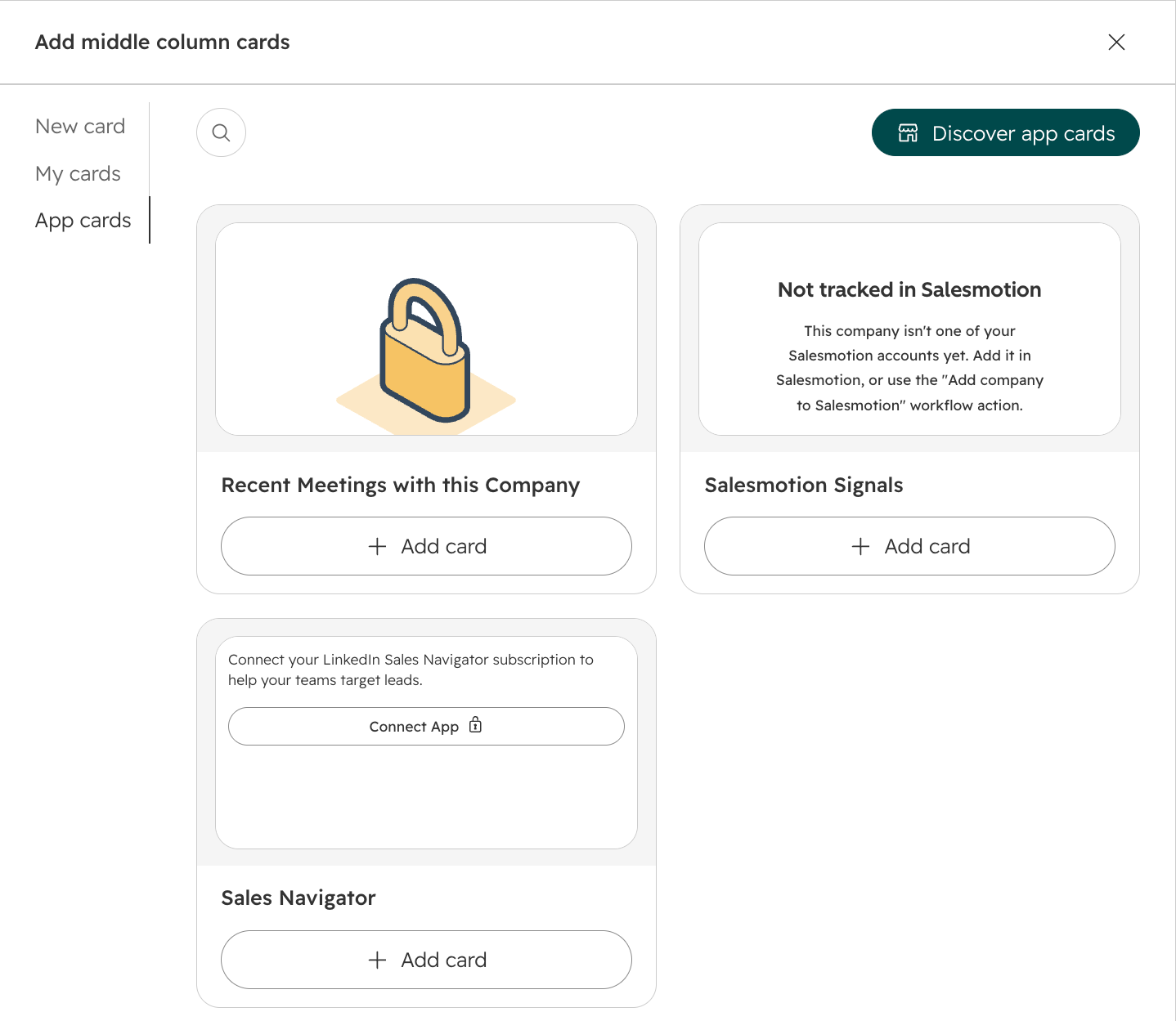 Add Salesmotion Signals from the Card library.
If your company records use several views (for example per team), add the cards to each view your team uses.
When the card is empty
| What you see | Why, and what to do |
|---|---|
| Not tracked in Salesmotion | The company isn't one of your Salesmotion accounts yet. Add the account in Salesmotion and the card fills in. |
| Connect Salesmotion | This HubSpot account isn't connected to Salesmotion. A Salesmotion admin connects it in Settings → Integrations → HubSpot. |
| No recent signals for this account. | The account is tracked, but has no recent signals yet. |
| Some sections are missing | Sections only show when there's something to show, for example key people once Salesmotion has found contacts for the account. |
| The card looks out of date after an update | Reload the page with Cmd+Shift+R (Mac) or Ctrl+Shift+R (Windows). HubSpot sometimes keeps an older version of a card. |