
The Fast Facts tab
The Fast Facts tab is your one-stop overview for any tracked account. It brings together the most important company information, quick-access links, account metadata, and recent signal activity — all on a single page.
When you open an account from the Accounts dashboard, Fast Facts is the first tab you'll see. Think of it as the "at a glance" view that tells you everything you need to know before a call or meeting.
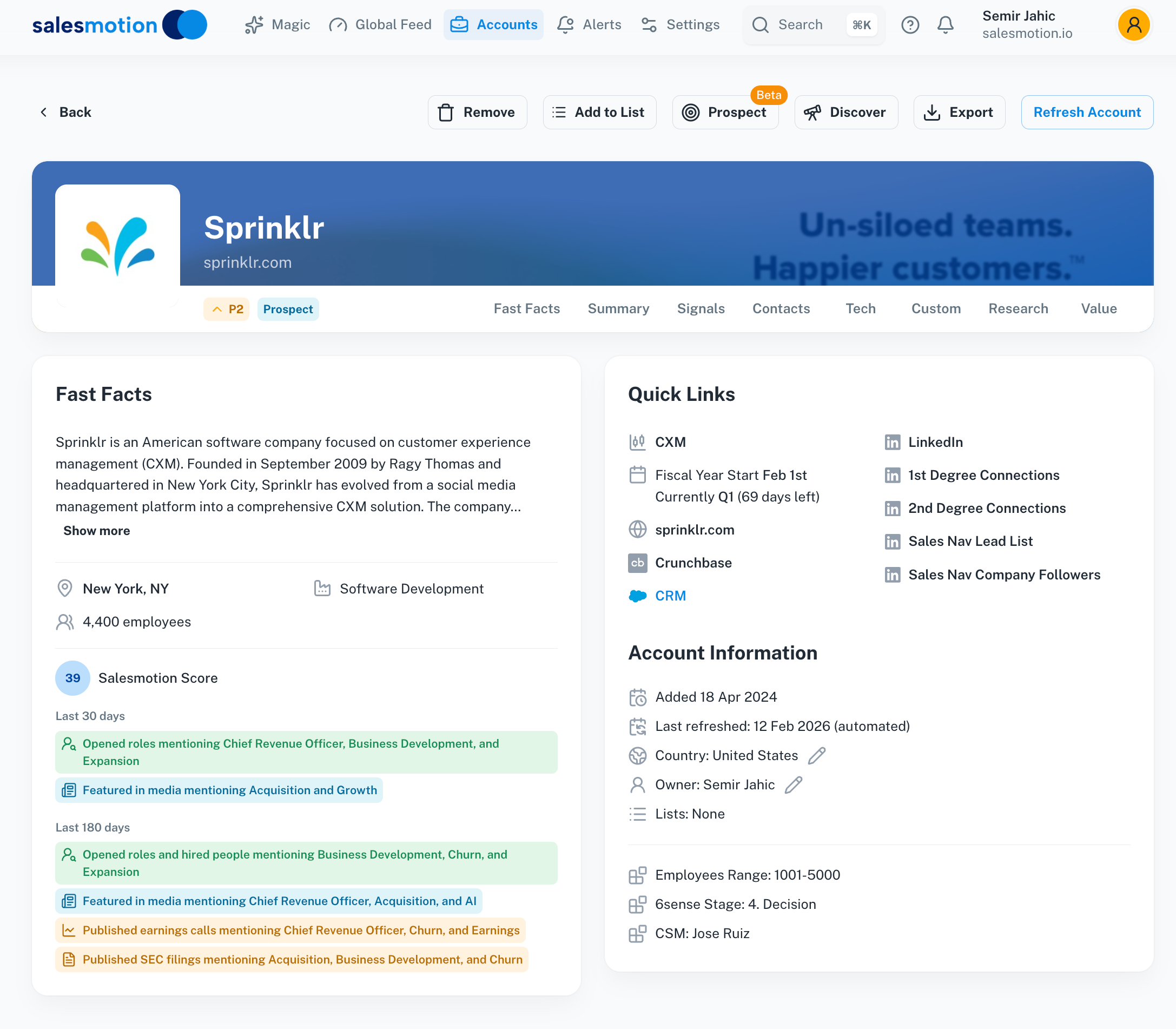 The Fast Facts tab for Sprinklr — showing the company banner, description, Quick Links, Account Information, and recent signal highlights at a glance.
Company information
At the top of the Fast Facts tab, you'll find the essentials:
- Company description — A brief summary of what the company does, pulled from public sources.
- Headquarters — The company's primary office location.
- Industry — The sector the company operates in (e.g. Software Development, Financial Services).
- Employee count — The approximate number of employees, giving you a sense of company size.
- Salesmotion Score — The current score for the account, reflecting recent signal activity. See Understanding the Salesmotion Score for details on how this is calculated.
Quick Links
Quick Links give you one-click access to the most important external resources for the account:
- Company website — Jump straight to the company's site.
- CRM record — If you have Salesforce connected, this takes you directly to the account in your CRM.
- LinkedIn — The company's LinkedIn page, plus shortcuts for 1st and 2nd degree connections.
- Crunchbase — The company's Crunchbase profile for funding, leadership, and competitive intelligence.
- Sales Navigator — Direct links to the Sales Nav lead list and company followers.
These links save you the time of searching for each resource separately — everything is gathered in one place.
Account Information
The Account Information section provides key metadata about how this account is managed within your workspace:
- Date added — When the account was first added to Salesmotion.
- Last refreshed — When Salesmotion last updated the account's data.
- Country — The company's primary country of operation.
- Owner — The team member assigned as the account owner.
- Lists — Any account lists the company belongs to.
- Employees range — A banded estimate of company size (e.g. >10000).
- 6sense Stage — The account's current buying stage from 6sense, if integrated.
- CSM — The assigned Customer Success Manager.
Note: Fields like CRM record, CSM, and 6sense Stage are internal fields pulled from your Salesforce instance via the Salesmotion integration. If you have the Salesforce integration connected, these fields are surfaced automatically — giving your reps quick access to CRM context without leaving Salesmotion.
Recent signal highlights
At the bottom of the Fast Facts tab, you'll see a summary of signal activity over three time periods: last 30 days, last 90 days, and last 180 days. This gives you an instant sense of how active the account has been and whether signal volume is trending up or down.
The Tech tab
The Tech tab shows the technologies that the account is known to use. This is particularly valuable for sales teams selling into technical environments, as it helps you understand what's already in the company's stack.
Each technology entry includes:
- Technology name — The tool or platform in use (e.g. Salesforce, AWS, Snowflake).
- Signal count — How many times this technology has been referenced in signals, giving you a sense of how deeply embedded it is.
- Context — Where applicable, Salesmotion identifies which team or department uses the technology and where it was mentioned (e.g. "Engineering team — referenced in a job posting for Senior Backend Engineer"). This extra context helps you tailor conversations around how the technology fits into their specific workflows.
Technology data is gathered from public sources including job postings, press releases, technology directories, and company documentation.
The Custom tab
The Custom tab is where Salesmotion surfaces AI-generated insights tailored specifically to your sales motion. The most powerful feature here is Discovery Questions.
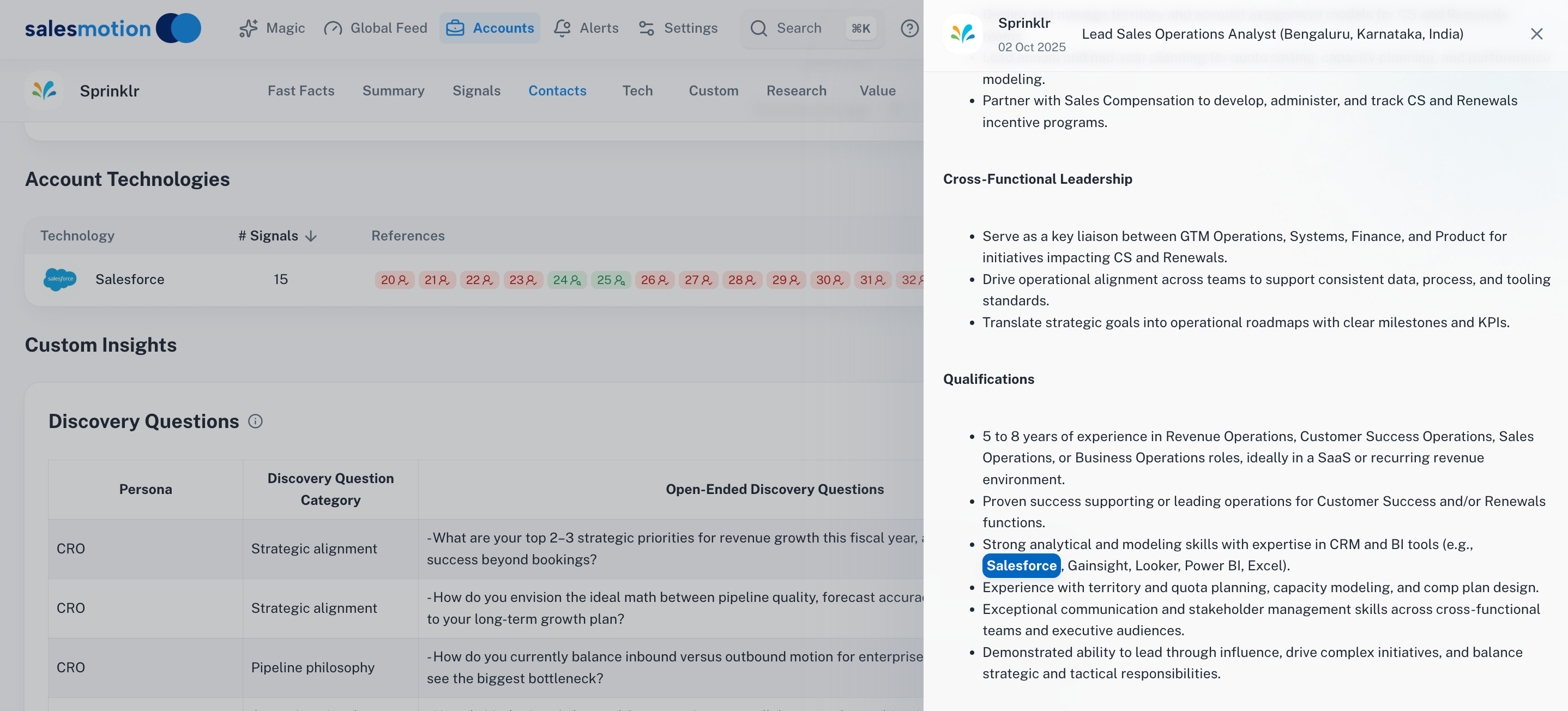 The Tech tab showing tracked technologies, and the Custom tab displaying Discovery Questions tailored by persona and category — ready to use in your next meeting.
Discovery Questions
Discovery Questions are AI-generated, open-ended questions designed to help you have more meaningful conversations with specific personas at the account. Each question is organised by:
- Persona — The role you'll be speaking with (e.g. CRO, VP of Sales, Head of Marketing).
- Category — The topic area the question explores (e.g. Strategic alignment, Pipeline philosophy, Revenue operations).
- Open-ended question — A thoughtful, specific question that draws on what Salesmotion knows about the account.
For example, when preparing for a call with a CRO, you might see questions like:
- "What are your top 2–3 strategic priorities for revenue growth this fiscal year?"
- "How do you currently balance outbound vs inbound motion for enterprise accounts?"
These aren't generic questions — they're informed by the account's industry, size, technology stack, and recent signal activity, making them far more relevant than a standard discovery framework.
How to use these tabs in your workflow
Before every call
Open the account's Fast Facts tab to refresh your memory on the basics: what the company does, how big it is, and what's happened recently. Use the Quick Links to check their LinkedIn for any last-minute news or leadership changes.
During meeting preparation
Move to the Custom tab and review the Discovery Questions for the persona you'll be meeting with. Pick two or three questions that align with your meeting objectives and weave them into your agenda.
When researching the tech stack
Check the Tech tab to understand what tools the account already uses. This helps you tailor your pitch — you can reference their existing stack and explain how your solution complements or improves it.
For account planning
Combine Fast Facts with the signal highlights to assess account health. An account with strong recent activity and a high Salesmotion Score likely warrants more investment of your time.
Tips for getting the most from these tabs
- Check Fast Facts before every call. It takes 30 seconds and ensures you're never caught off guard by basic company questions.
- Use Discovery Questions in meeting prep. Having two or three persona-specific questions ready elevates your discovery calls from generic to consultative.
- Leverage Quick Links to move fast. Instead of searching for the company in LinkedIn, Crunchbase, or your CRM, use the Quick Links to jump straight there.
- Monitor signal trends. The 30/90/180-day signal highlights tell you whether an account is heating up or cooling down — use this to adjust your prioritisation.
- Cross-reference the Tech tab with your product's integrations. If you see a technology in their stack that your product integrates with, that's a strong talking point to lead with.
Frequently asked questions
How often is the data on the Fast Facts tab updated?
Account data is refreshed regularly as Salesmotion detects new signals and public information. The "Last refreshed" field in Account Information shows when the most recent update occurred. You can also click Refresh Account in the toolbar to trigger a manual refresh.
Are Discovery Questions available for every account?
Discovery Questions are generated by Salesmotion's AI based on available account data. Accounts with more signal history and richer public data will generally have more detailed and relevant questions. Newer or less-active accounts may have fewer questions available initially.
Can I add my own custom insights or questions?
The Custom tab is currently populated by Salesmotion's AI. Manual custom fields are not yet supported, but the AI-generated questions are continuously refined as more data becomes available for the account.